
Media Library and adding screenshots or videos to Help articles
Published: 2026-07-10
How to upload screenshots, mark them public, and embed them inside Help articles.
This article is for the Karcsham team when maintaining the official Karcsham Fi documentation. Customers read the public Help articles, while support staff use the Media Library to add screenshots and visuals.
When to use the Media Library
- Add a real screenshot from a KF page.
- Update an article after a feature change.
- Keep official screenshots inside managed storage instead of external links.
- Review whether article images are Public or still Internal.
Uploading an image
- Open Central.
- Sign in as Support, Admin, or Super Admin.
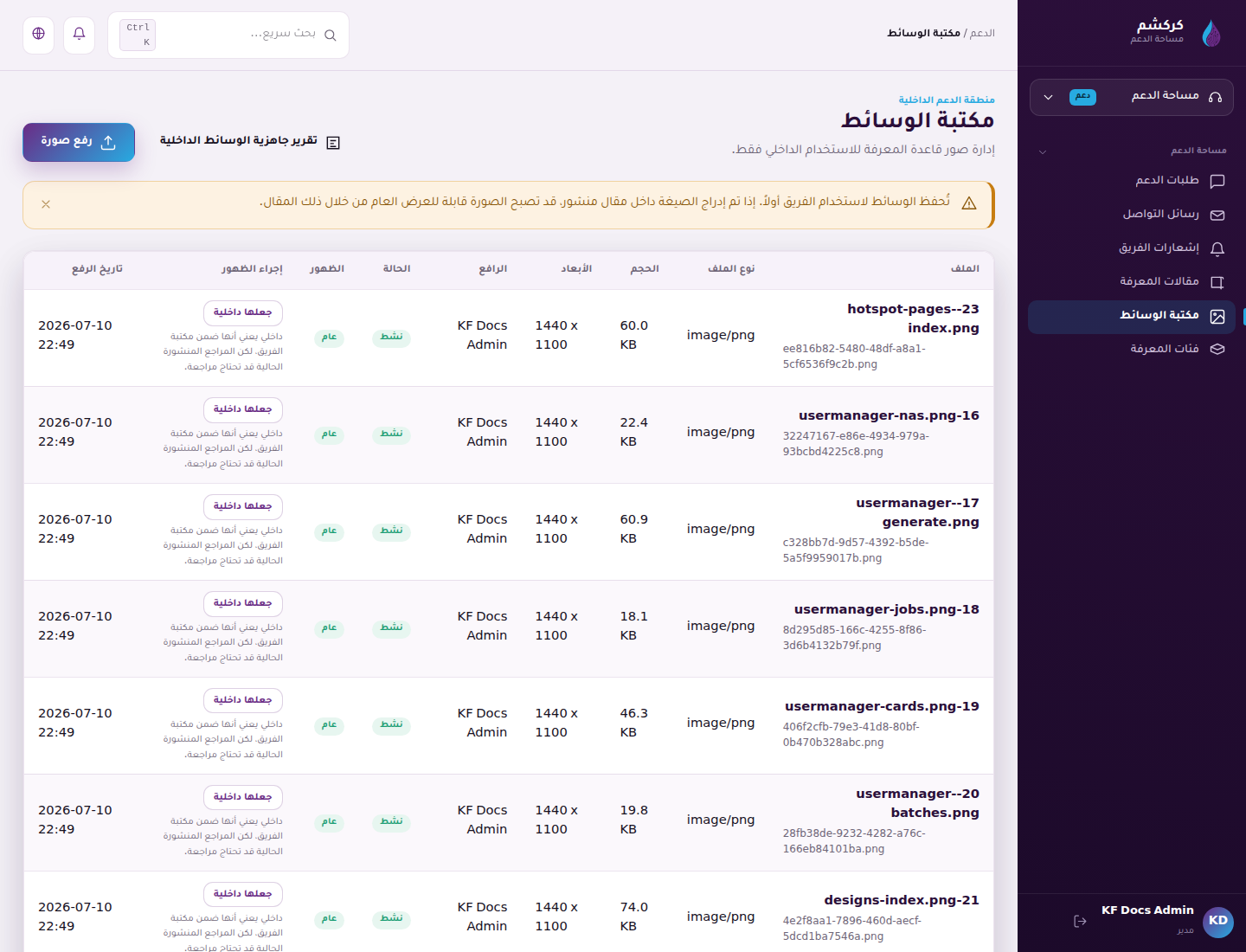
- Open Support, then Knowledge, then Media Library.
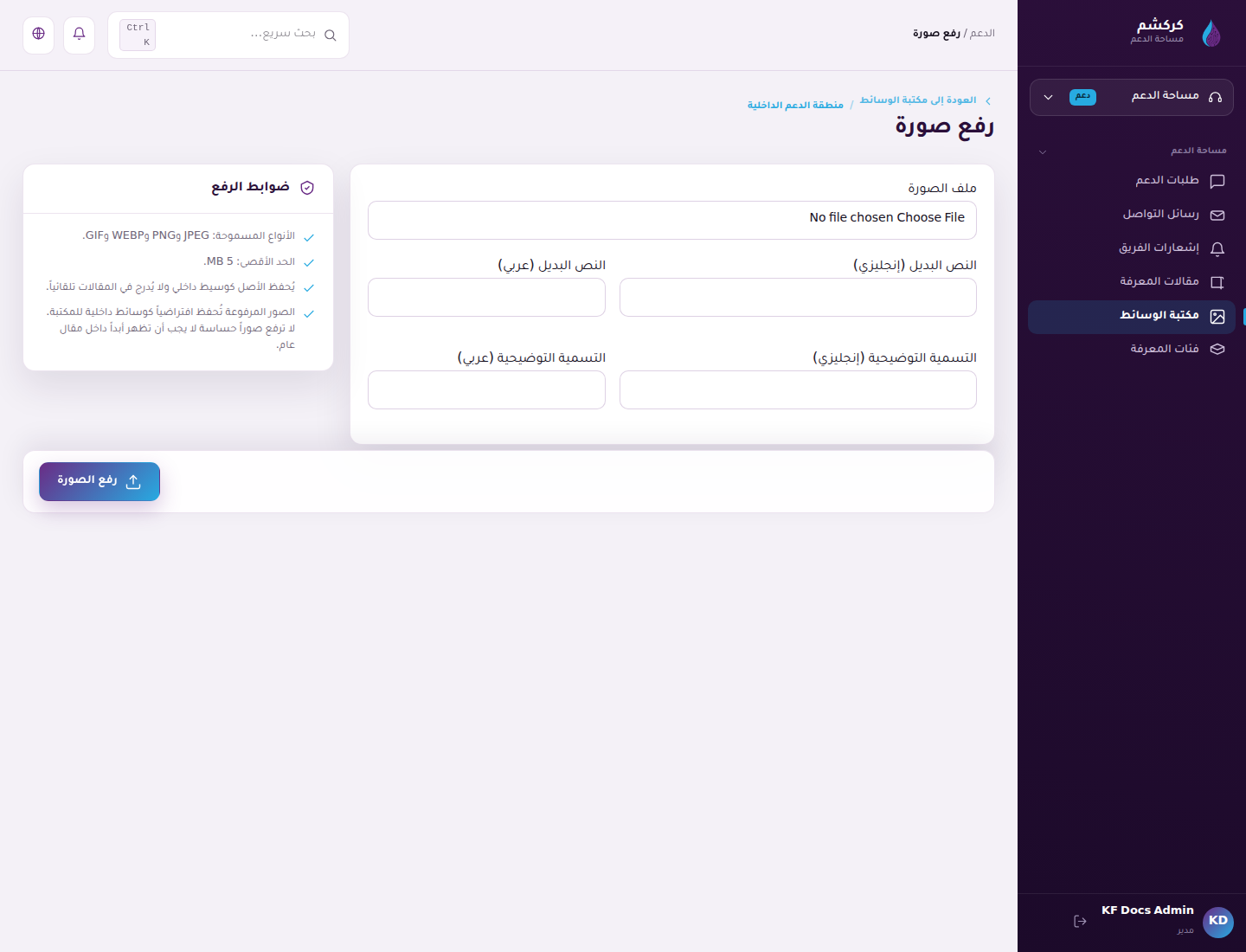
- Press Upload image.
- Choose PNG, JPG, WEBP, or GIF.
- Add Arabic and English alt text and captions.
- Save the image.
Uploaded images start as Internal. This prevents unfinished screenshots from appearing in public articles by accident.
Making an image usable in a published article
After upload:
- Return to Media Library.
- Find the image.
- If the article is public, mark the image Public.
- Copy the insertion snippet shown beside the image.
The snippet looks like:
Example only: [[ image:/storage/media/library/2026/07/example.png | Image description ]]
Use managed Media Library images for official documentation. Published articles validate that referenced images exist, are active, and are public.
Embedding the image
In the article editor:
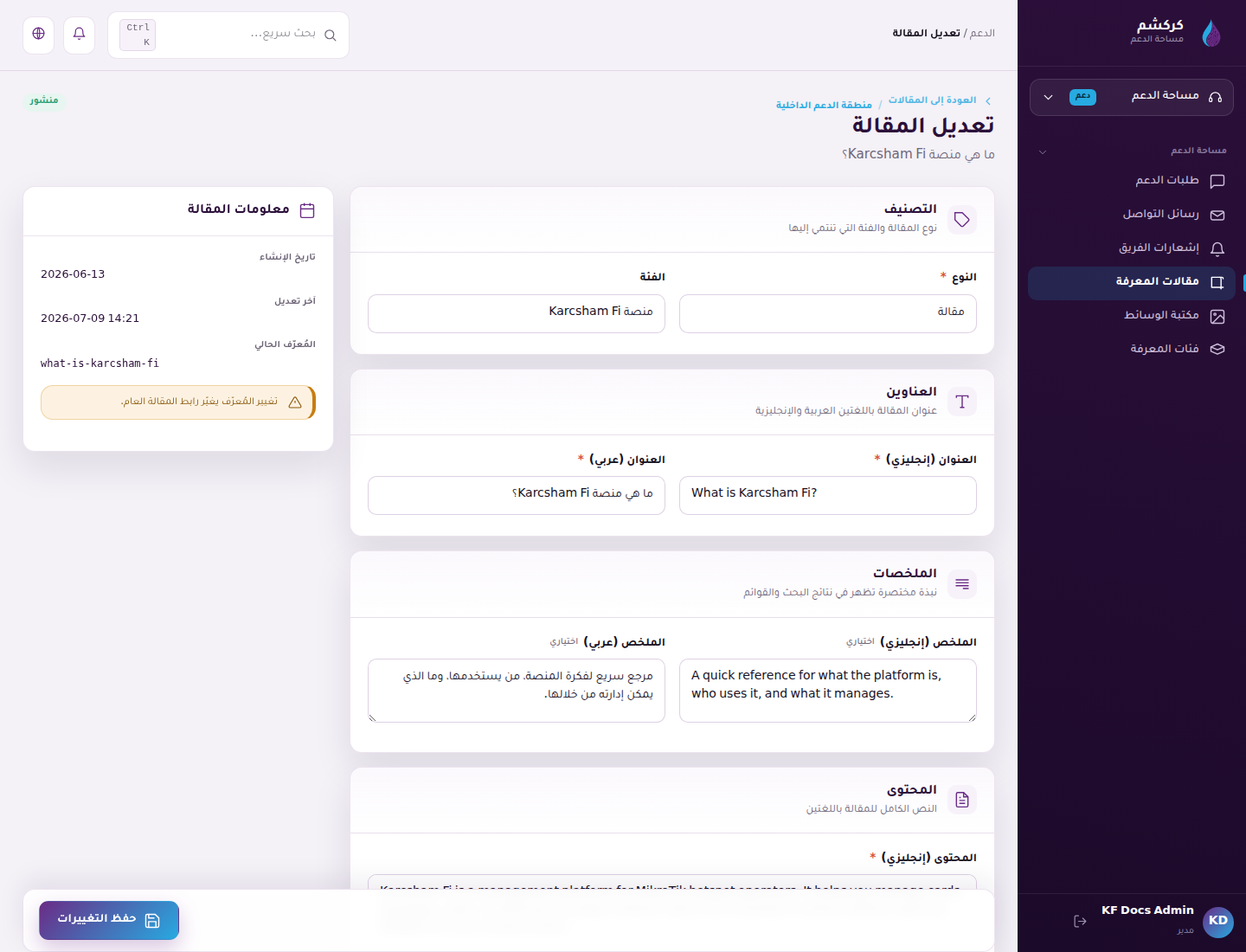
- Open the article.
- Place the cursor in the Arabic or English body.
- Paste the image snippet on its own line.
- Save the article.
- If the article is published, confirm the image is Public.
Adding a YouTube video
Use this syntax on its own line:
Example only: [[ youtube:https://youtu.be/VIDEO_ID | Video title ]]
Use clear titles such as: Hotspot card generation walkthrough.
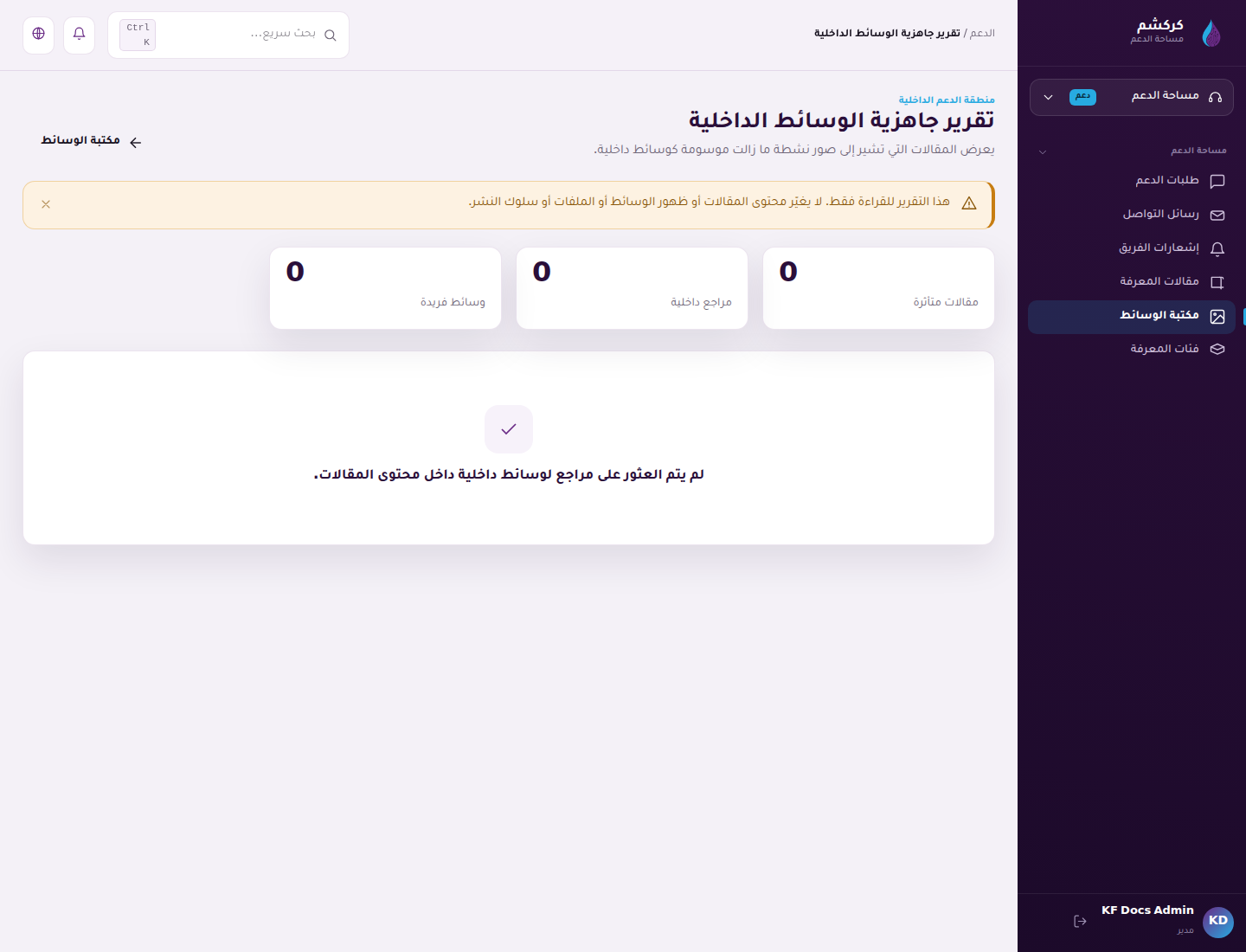
Internal Media Readiness report
Use the readiness report before publishing important articles. If a listed article references an Internal image, review that image and mark it Public only when it is safe for public documentation.
Important notes
- Do not upload screenshots containing passwords or real customer data.
- Use a documentation account or demo data when taking KF screenshots.
- Write clear captions.
- If a screenshot is not ready, leave a placeholder note.
- Before publishing, open the public article and confirm the image renders.
Reference screenshots