
Service Guide
In category: KWSM & Remote Access
Add a MikroTik router and run the script
Published: 2026-07-10
Explains reserving an IP, copying the MikroTik script, and submitting the PublicKey.
Use router add when you want the MikroTik router itself to connect to the KWSM tunnel.
Before you start
Confirm that:
- You still have available router capacity.
- You can access the MikroTik Terminal.
- The router date and time are reasonably correct.
Linking steps
- Open Devices and Routers, then Add item.
- Choose MikroTik router.
- Enter the router name and optional comment.
- Click Continue.
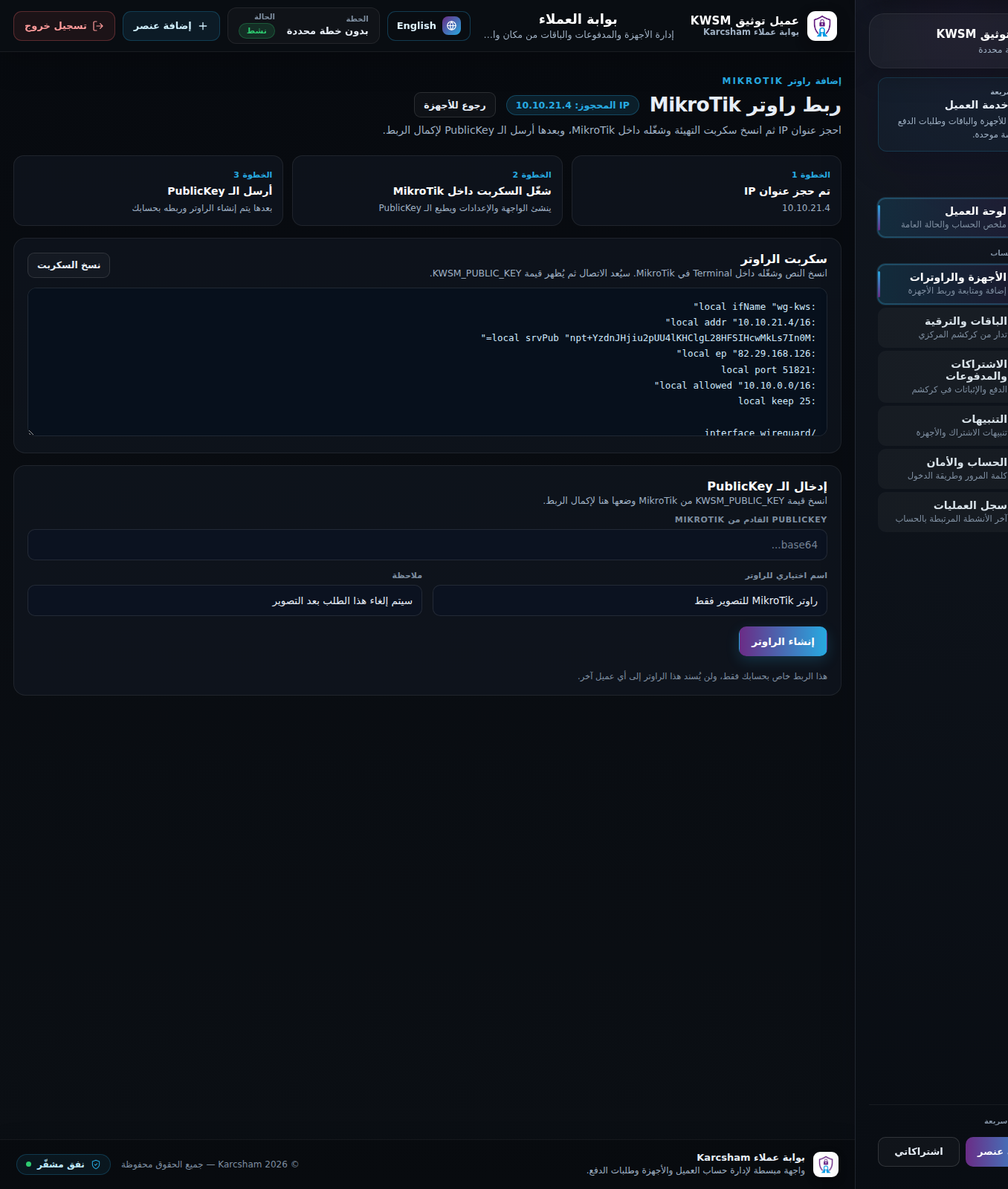
- KWSM reserves an IP address and shows a MikroTik script.
- Copy the full script.
- Open MikroTik Terminal, paste the script, and run it.
- MikroTik prints a value named KWSM_PUBLIC_KEY.
- Copy KWSM_PUBLIC_KEY and paste it into the PublicKey field in KWSM.
- Click Create router.
What happens after submitting?
KWSM creates a router peer and queues an Apply job so the server configuration can be applied. Then open the verification page to check connectivity.
If you do not finish
Return to Devices and Routers to resume the request while it is valid, or cancel it to release the reserved IP.
Reference screenshots