Support Doc
In category: KWSM & Remote Access
Common errors and limits reference
Published: 2026-07-10
A quick explanation of common client messages and what to do next.
Use this reference when KWSM shows a message you do not understand.
Account or sign-in
- Local sign-in is disabled: use KARCSHAM sign-in.
- KARCSHAM link is invalid or expired: launch KWSM again from Central.
- Account is suspended or closed: contact support.
- Central identity is not linked or client cannot be provisioned: contact support and include your KARCSHAM account email.
Subscription and capacity
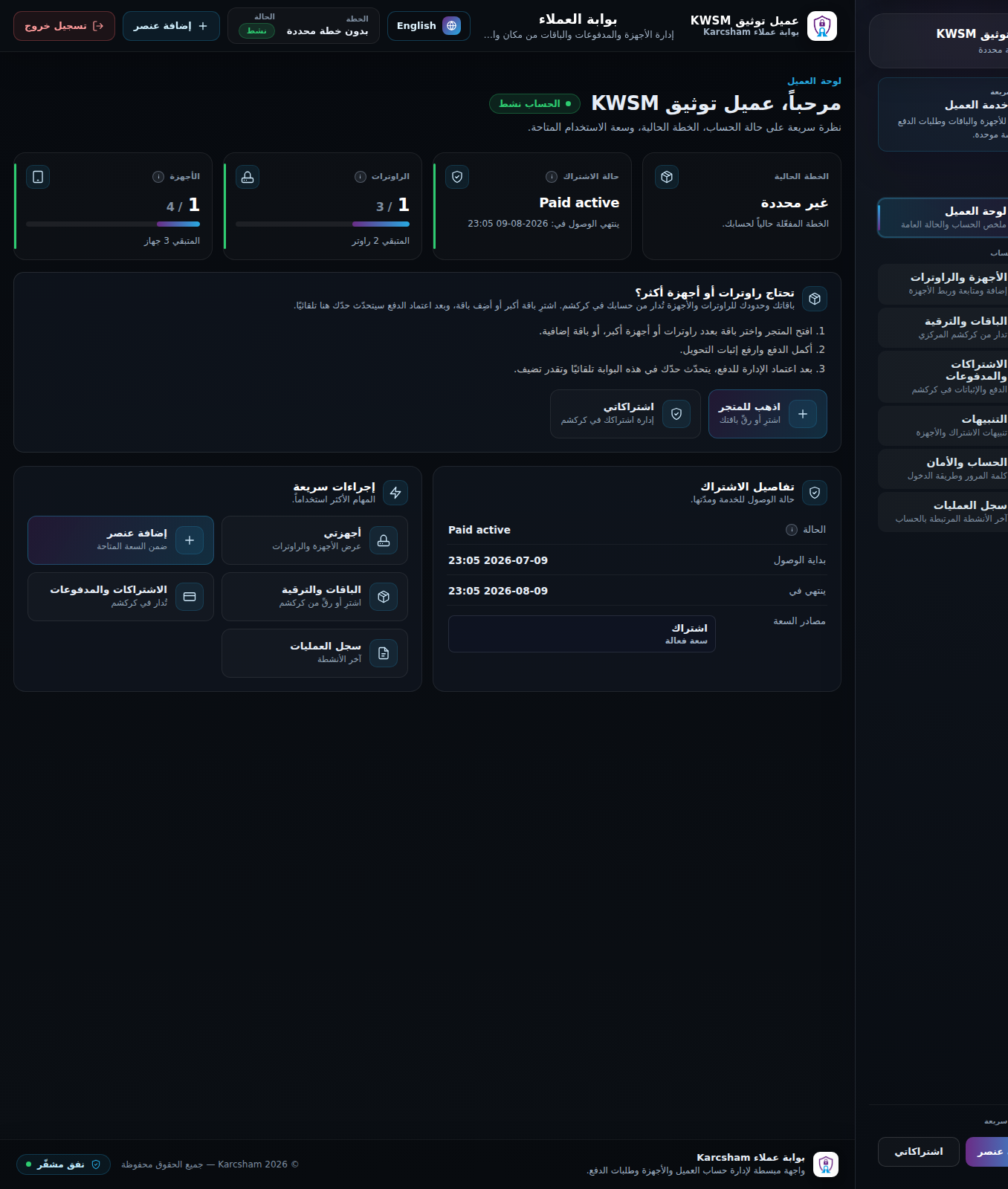
- No active entitlement: subscribe or renew from KARCSHAM Central.
- This action requires active entitlement: you cannot add a device or router before access is active.
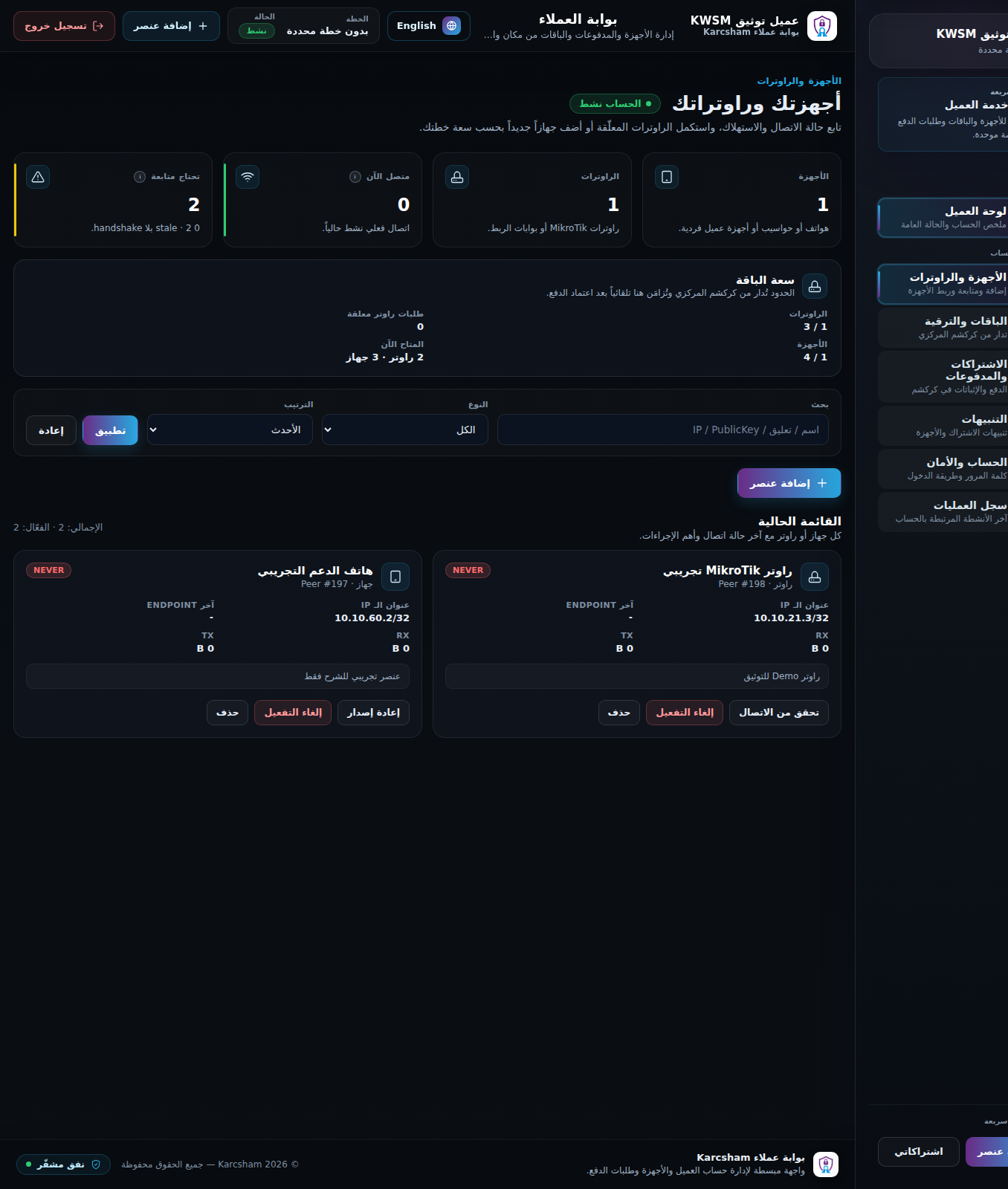
- Device or router limit reached: delete an unused item or upgrade the plan.
- Router request already in progress: finish or cancel the current request before starting another.
Adding a device
- Download expired or already used: regenerate a new configuration.
- Invalid type: choose Client device or MikroTik router from the list.
Adding a router
- Invalid PublicKey: copy KWSM_PUBLIC_KEY exactly as MikroTik printed it.
- Duplicate PublicKey: do not reuse another router key.
- Incomplete payload or invalid token: return to Devices and start a new router request.
Verification
- Peer not found in wg show: wait for configuration apply or ask support to run Apply.
- No handshake: check internet access, time/date, script execution, and UDP port reachability.
- Ping failed: the tunnel may be connected while the router does not reply to ping.
Reference screenshots