Support Doc
In category: KWSM & Remote Access
Verify router connection, handshake, and ping
Published: 2026-07-10
How to read the verification page after creating a router and what Applied, Handshake, and Ping mean.
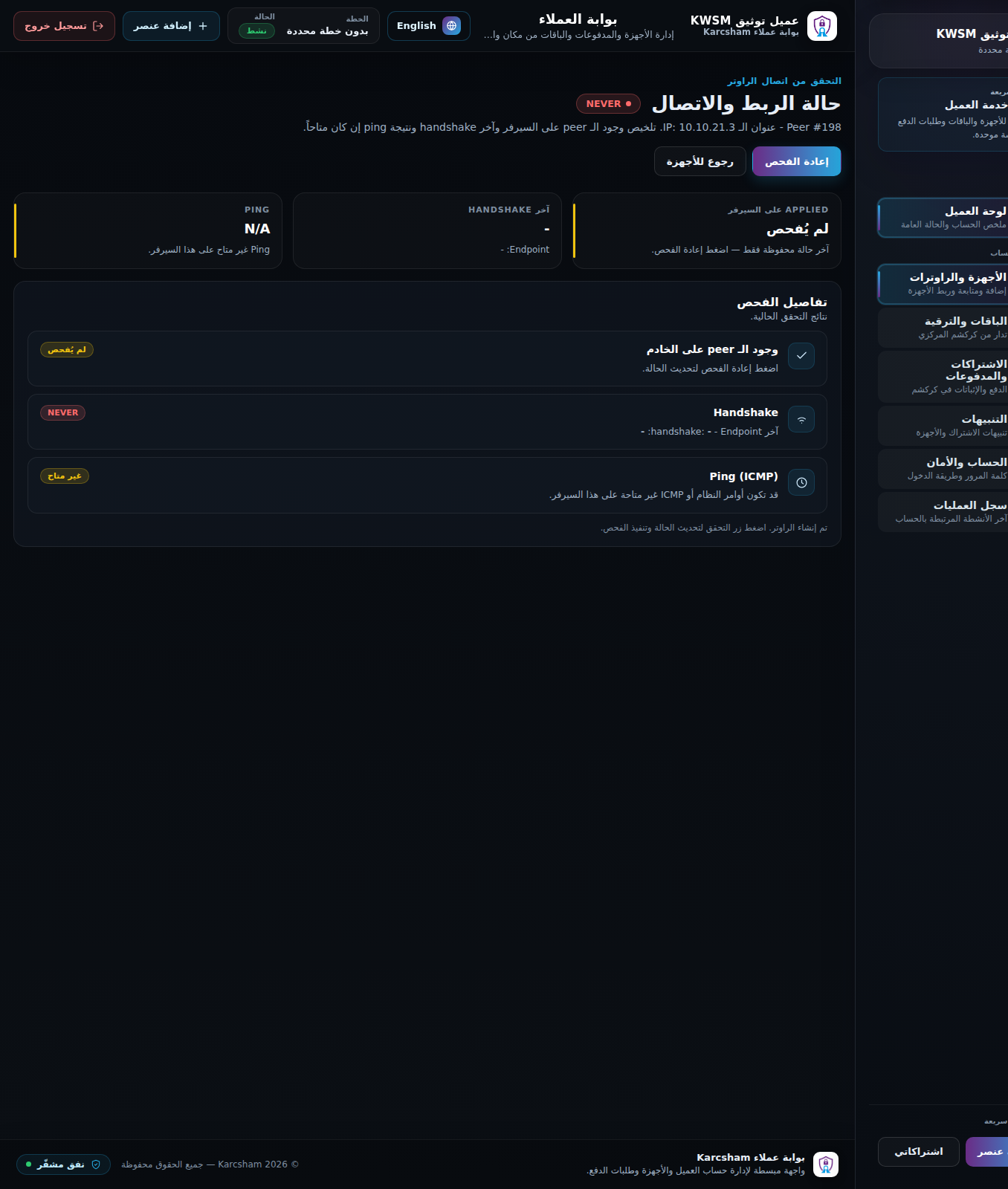
After creating a MikroTik router, open the verification page to see whether the link has started working.
What does the verification page show?
- Applied: whether KWSM found the peer in the WireGuard configuration applied on the server.
- Last handshake: the latest time the router contacted the server.
- Endpoint: the address the router appeared from.
- Ping: a simple reachability check to the reserved router address when supported.
Run the check
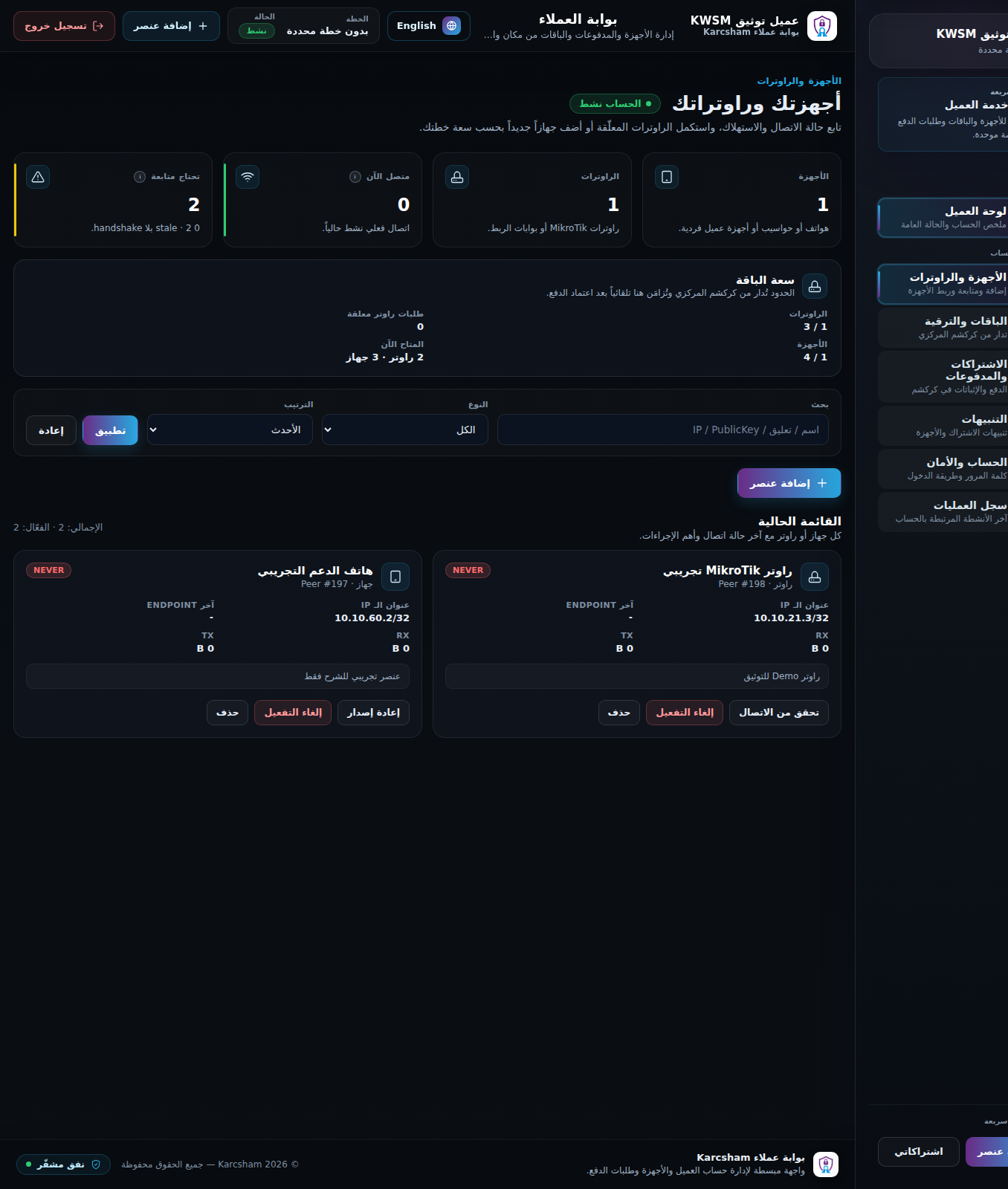
- Open Devices and Routers.
- Click Verify beside the router.
- Click run check or refresh status.
- Wait for the result.
If Applied is missing
The system may still need to apply configuration, or support may need to review the Apply job. Do not recreate the router immediately before checking.
If no Handshake appears
Review:
- Was the full MikroTik script executed?
- Did you paste the correct PublicKey?
- Can the router reach the internet?
- Is MikroTik time/date close to the real time?
- Is the required UDP port blocked by the network?
If only Ping fails
The tunnel may be connected while firewall or router rules block ping replies. Contact support for deeper diagnosis.
Reference screenshots