
Service Guide
In category: KWSM & Remote Access
Add a device and download the WireGuard file
Published: 2026-07-10
Steps to create a client device, download the one-time configuration file, and store it safely.
Use this path when you want to run WireGuard on a phone or computer as a client device.
Before adding
Confirm that:
- Your account is active.
- Your subscription is active.
- You still have available device capacity.
Add the device
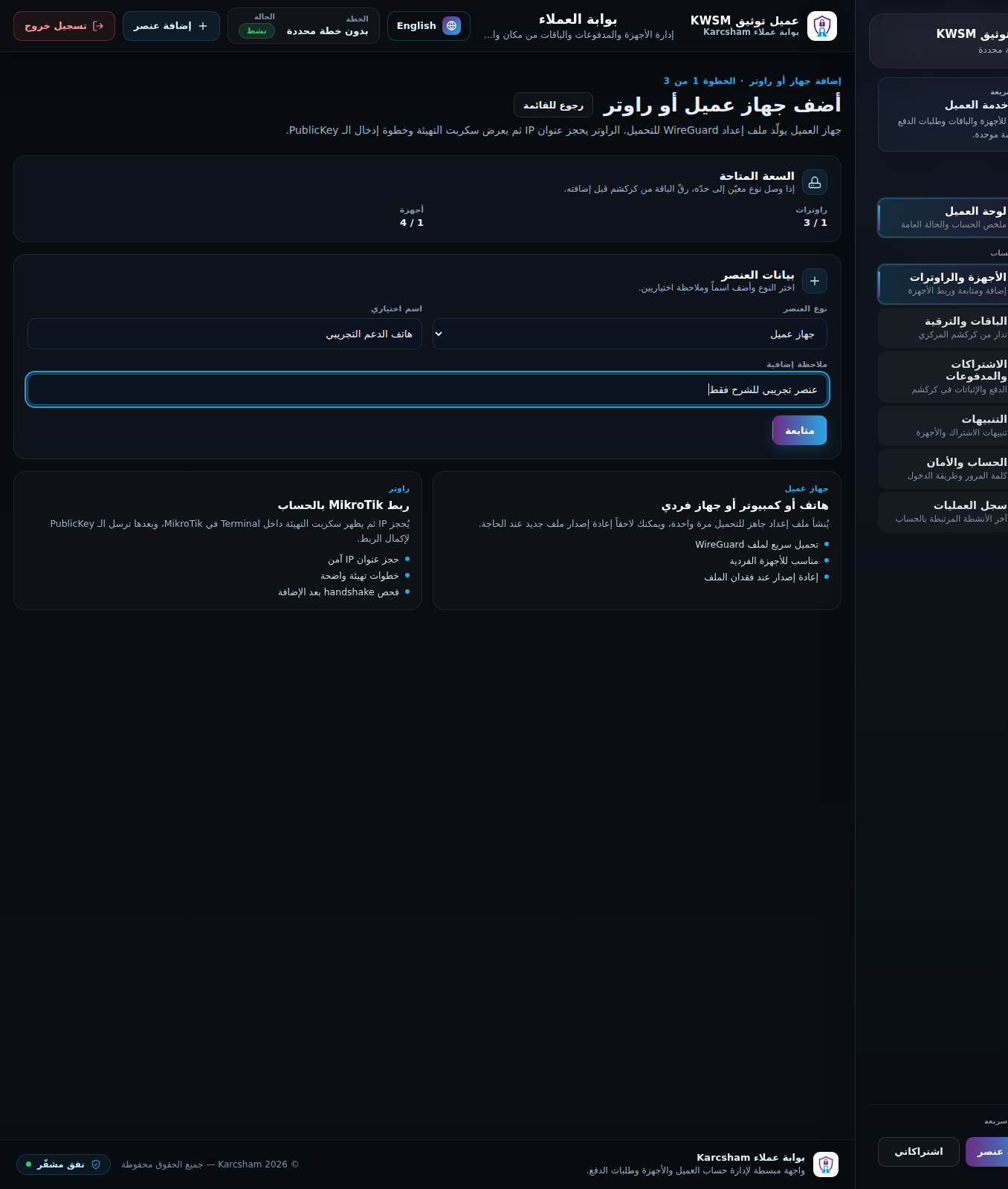
- Open Devices and Routers.
- Click Add item.
- Choose Client device.
- Enter a clear name such as Manager phone or Support laptop.
- Add an optional comment.
- Click Continue.
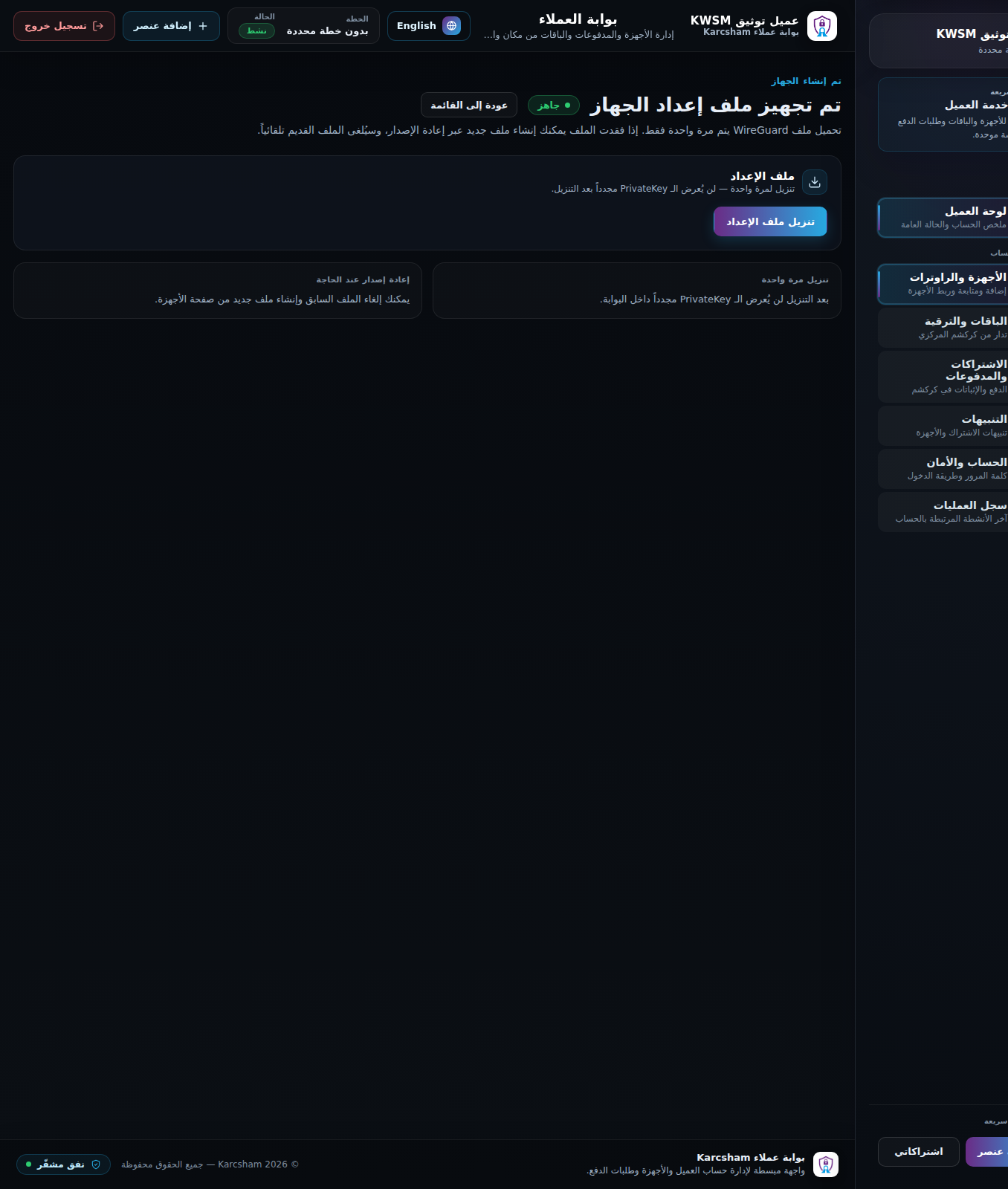
- After creation, the WireGuard configuration download page opens.
Download the configuration
Click Download configuration and save the file immediately. The file contains the PrivateKey and is not shown again after download. If you lose it, regenerate the device from the devices page; the old file/key is revoked.
After download
- Open the WireGuard app on your phone or computer.
- Choose import from file.
- Select the downloaded configuration file.
- Enable the tunnel.
Security notes
- Do not share the WireGuard file in groups or public channels.
- Do not reuse the same file across multiple devices if you need clear tracking.
- If the device is sold or lost, revoke or delete it from KWSM.
Reference screenshots