
Sign-in, dashboard, and router selection
Published: 2026-07-04 Last updated: 2026-07-28
The first steps: sign in, read the dashboard, and confirm the active router.
The dashboard is the first working page after sign-in. It combines the most important numbers for the selected router and gives quick links to daily workflows.
Sign in
- Open the Karcsham Fi URL in your browser.
- If Central sign-in is enabled, use Sign in with KARCSHAM.
- If local sign-in is available, enter your email and password.
- The dashboard opens after a successful login.
Select the router
The router selector in the top bar controls most Hotspot, User Manager, reporting, and printing actions.
Before any important task:
- Confirm the router name.
- If you manage multiple networks, switch to the correct router first.
- If no router appears, open Settings then Routers, or ask a super admin to grant access.
Read the dashboard
The dashboard usually shows:
- Hotspot user count.
- Active sessions.
- User Manager users and active sessions.
- Today and month sales.
- System identity, version, uptime, CPU, memory, and disk usage.
- Hotspot and User Manager card status.
- Recent batches, recent sales, and top packages.
- Alerts for expiring cards, expired cards, or running generation jobs.
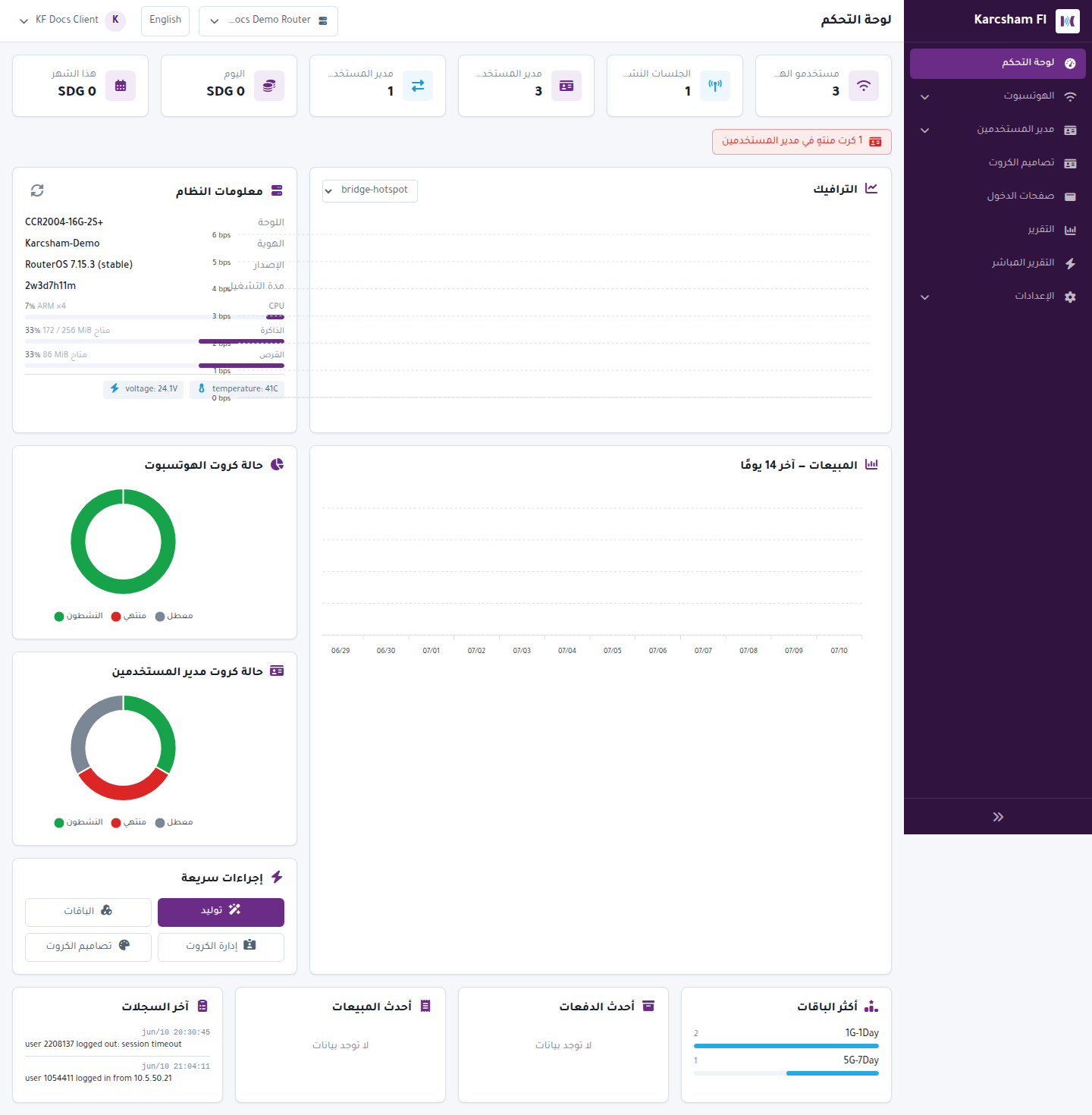
Dashboard actions
- Refresh reloads router data.
- Manage Routers helps with connection or device mismatch warnings.
- Generate creates new card batches.
- Card Management opens card review, printing, and bulk actions.
- Report and Live Report open sales views.
Package and limit notices
The Your package panel shows router limits, issued-card limits, included features, hotspot page publishing limits, and the subscription end date. When a limit is reached, adding routers, generating more cards, or publishing login pages to additional routers may be blocked until renewal or upgrade through KARCSHAM Central.
When Projected Central package appears
Projected Central package means KF has received package data from Central, but effective access is still denied or synchronizing. In that state:
- The displayed numbers are evidence, not final authorization.
- Wait if the subscription was just changed.
- If the block remains, review the subscription in KARCSHAM Central or contact support.
Projected entitlement lines
Entitlement lines show which Central package or add-on contributes capacity. They explain the source of the limits, but they do not enable service by themselves when effective access is denied.