

Router management and MikroTik linking
Published: 2026-07-04 Last updated: 2026-07-28
How to add, test, select, import, and export routers.
The Routers page is the management center for MikroTik devices. Routers added here can be used by Hotspot, User Manager, reports, and design workflows depending on account permissions.
Where to find it
Open Settings then Routers from the sidebar.
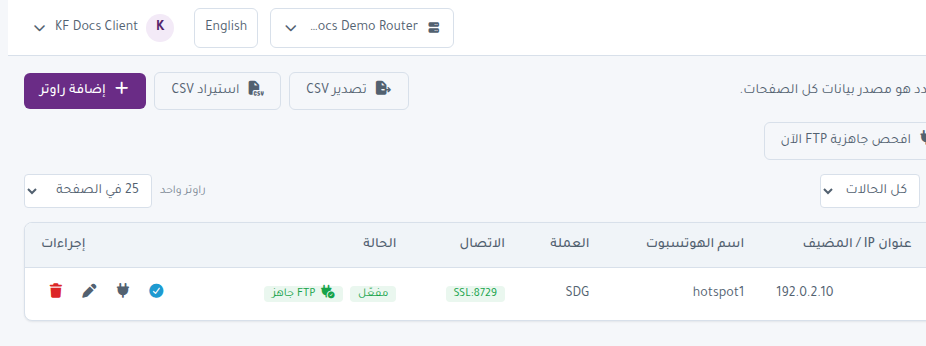
Add a router
- Press Add Router.
- Enter the router name and IP or host.
- Enter the API username and password.
- Add the hotspot name if needed.
- Set currency and optional contact information.
- Save, then use Test Connection.
Select the active router
Press Select beside the router you want to work on. Other pages will then operate on that router.
Test connection
Use Test Connection to confirm the API credentials and server reachability. A successful test shows the working connection mode and port.
CSV import and export
- Export CSV downloads the current router list.
- Import CSV imports multiple routers at once.
- Use the provided import template so column names are correct.
Identity and transport scans
The identity and file-transfer scan buttons help you:
- Detect a changed device behind the same IP.
- Confirm whether the router uses secure API-TLS and SFTP.
- Check whether file transfer is available before login page publishing.
- Avoid running actions against the wrong router.
Connection and security states
You may see states such as:
- Operational: the router works, and transport is safe when Secure transport verified appears.
- Enabled, connection not yet verified: the router is enabled but has not been tested yet.
- Enabled but unreachable: the router is enabled but the connection failed.
- Reachable, transport at risk: the router responds, but transport security needs correction.
- Operational with temporary transport exception: a bounded private/tunnel exception is active.
- Quarantined by subscription limit: the router is blocked by package limits and cannot be removed by manual editing.
Secure transport for new routers
New routers default to Secure only. Prepare:
- API-TLS certificate name if it differs from IP / Host.
- Dedicated SFTP username.
- Dedicated SFTP password.
- SFTP host-key fingerprint in SHA256:... format.
Use an SFTP account that is different from the API account. If SFTP data is incomplete, login page file deployment will not work.
Device mismatch warning
Device changed or Different device detected means the live device does not match the stored device identity. Do not generate cards or publish login pages before resolving the warning.
If the device swap is intentional, use Re-bind. Otherwise, check the IP, routing, or network connection first.