

Start Plan (3 of 3): running the plan in Karcsham Fi
Published: 2026-07-29 Last updated: 2026-08-03
Adding the router with its KWSM tunnel address, testing the connection, generating vouchers within the plan limits, and when to ask for support.
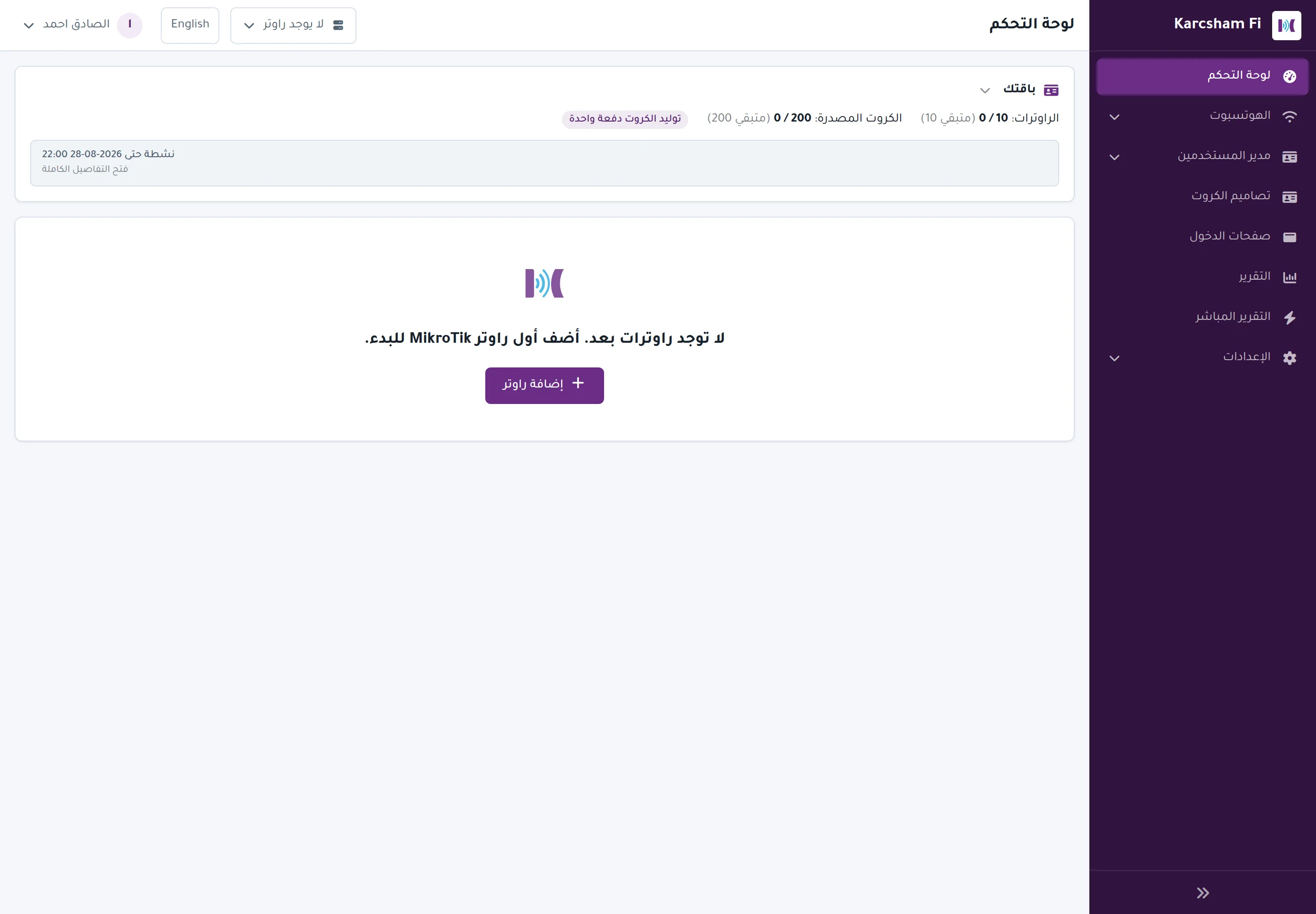
Add the router in Karcsham Fi
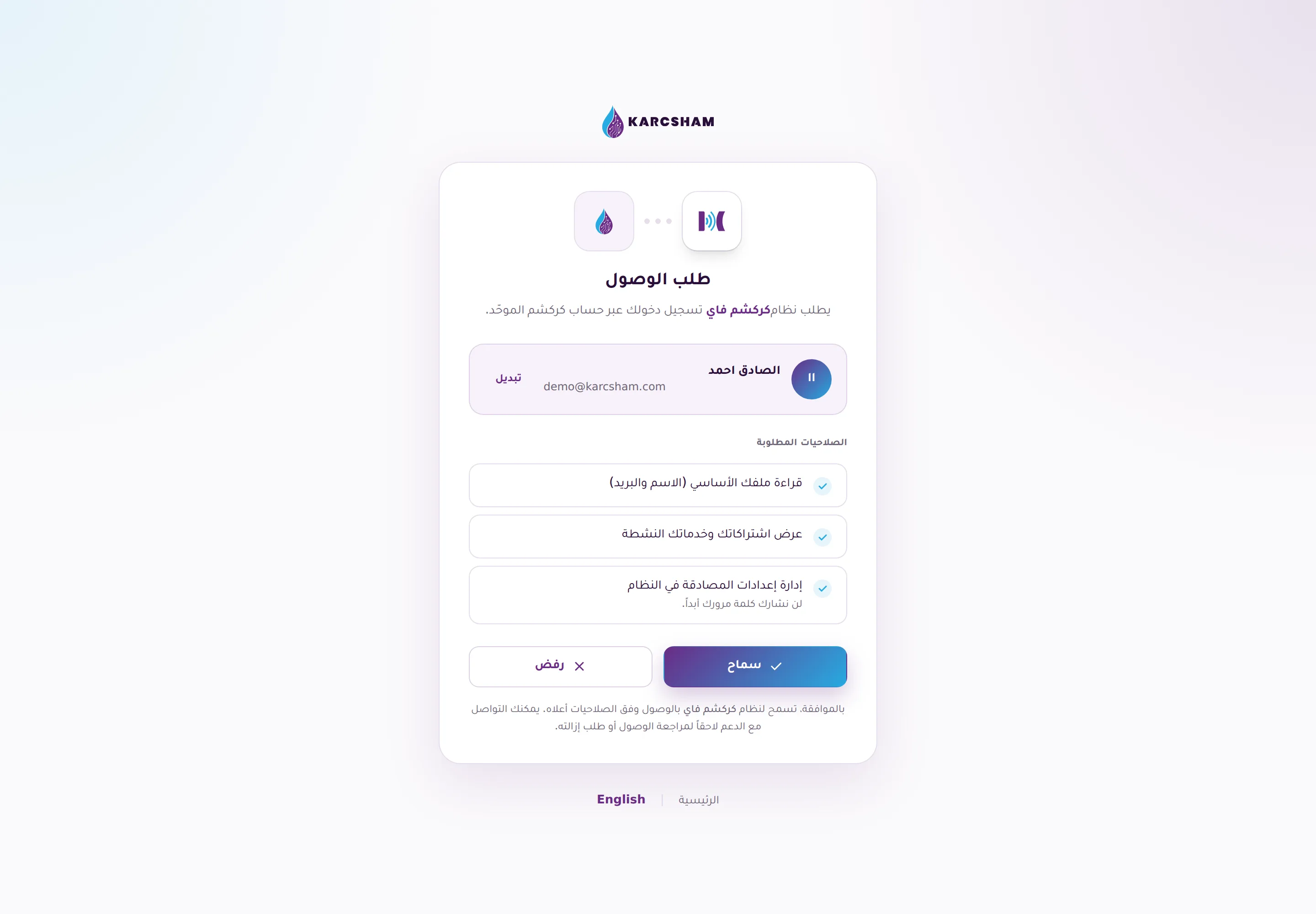
After the KWSM connection check succeeds:
- Open Karcsham Fi from Central connected applications.
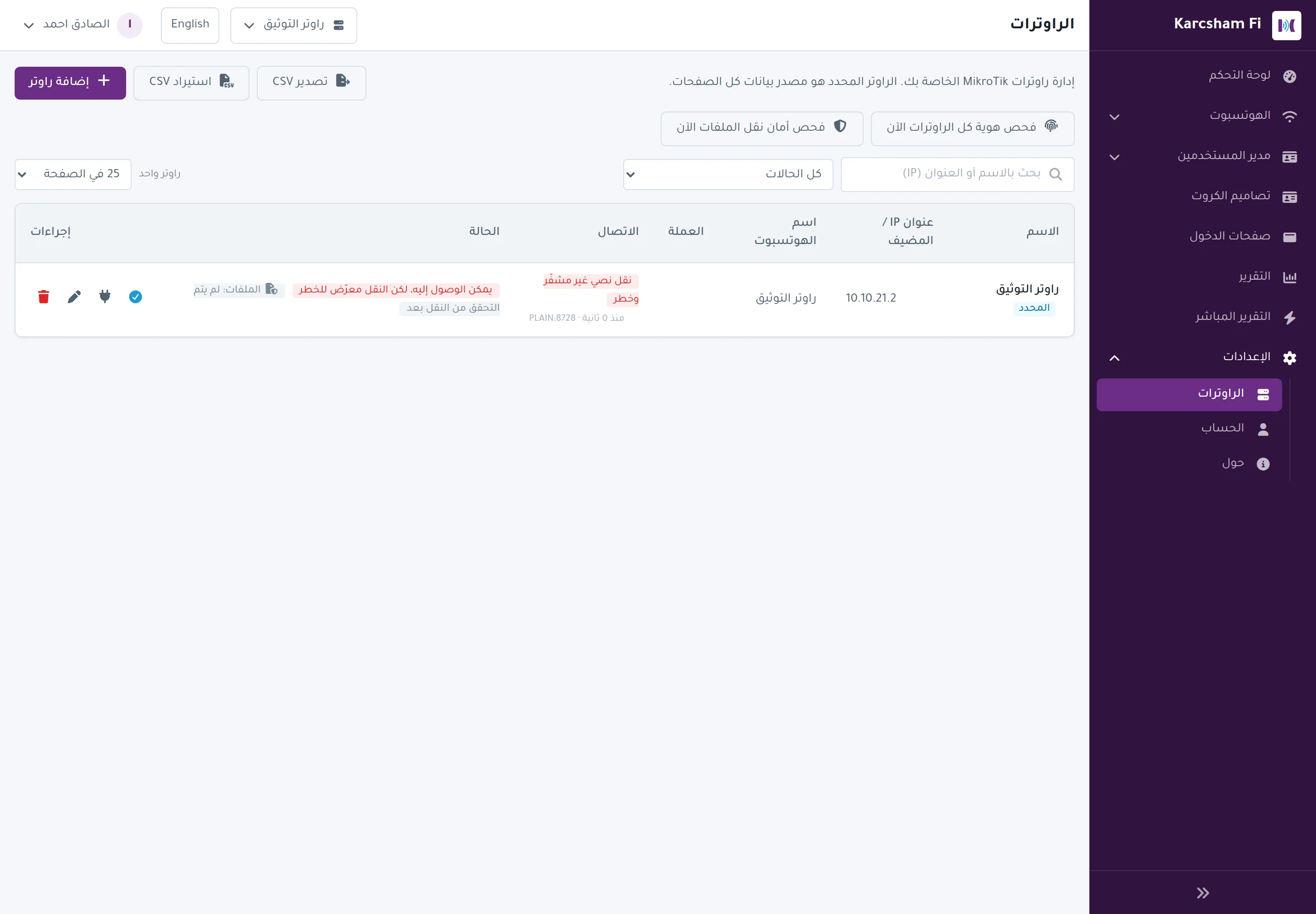
- Open Settings, then Routers.
- Press Add Router.
- Enter a clear router name.
- In IP or Host, enter the KWSM address you received after the successful check.
- Enter the router API credentials. Use a dedicated management account if available, and do not share the password outside the site.
- Complete the hotspot name, currency, and any required fields.
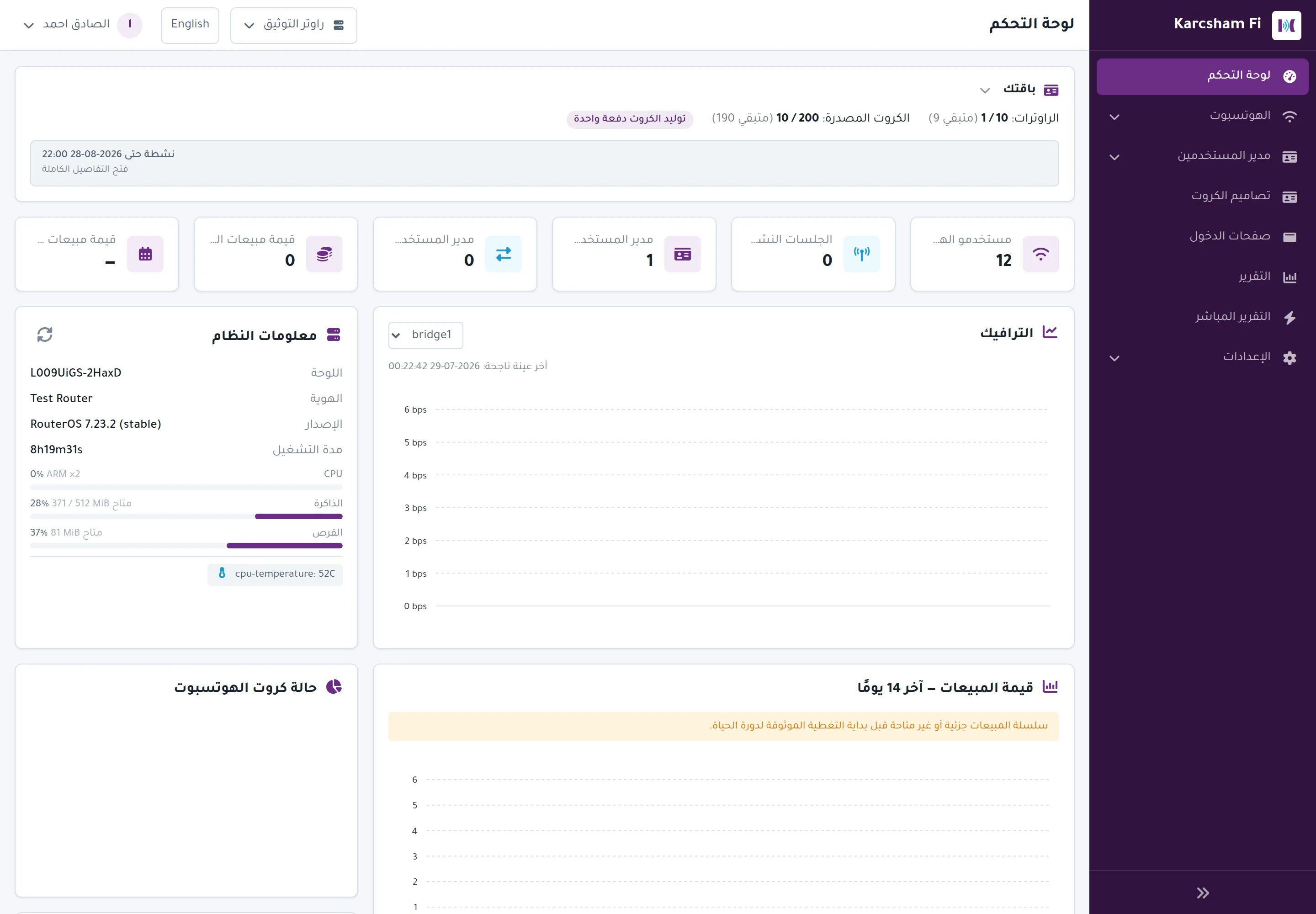
- Save, then press Test Connection.
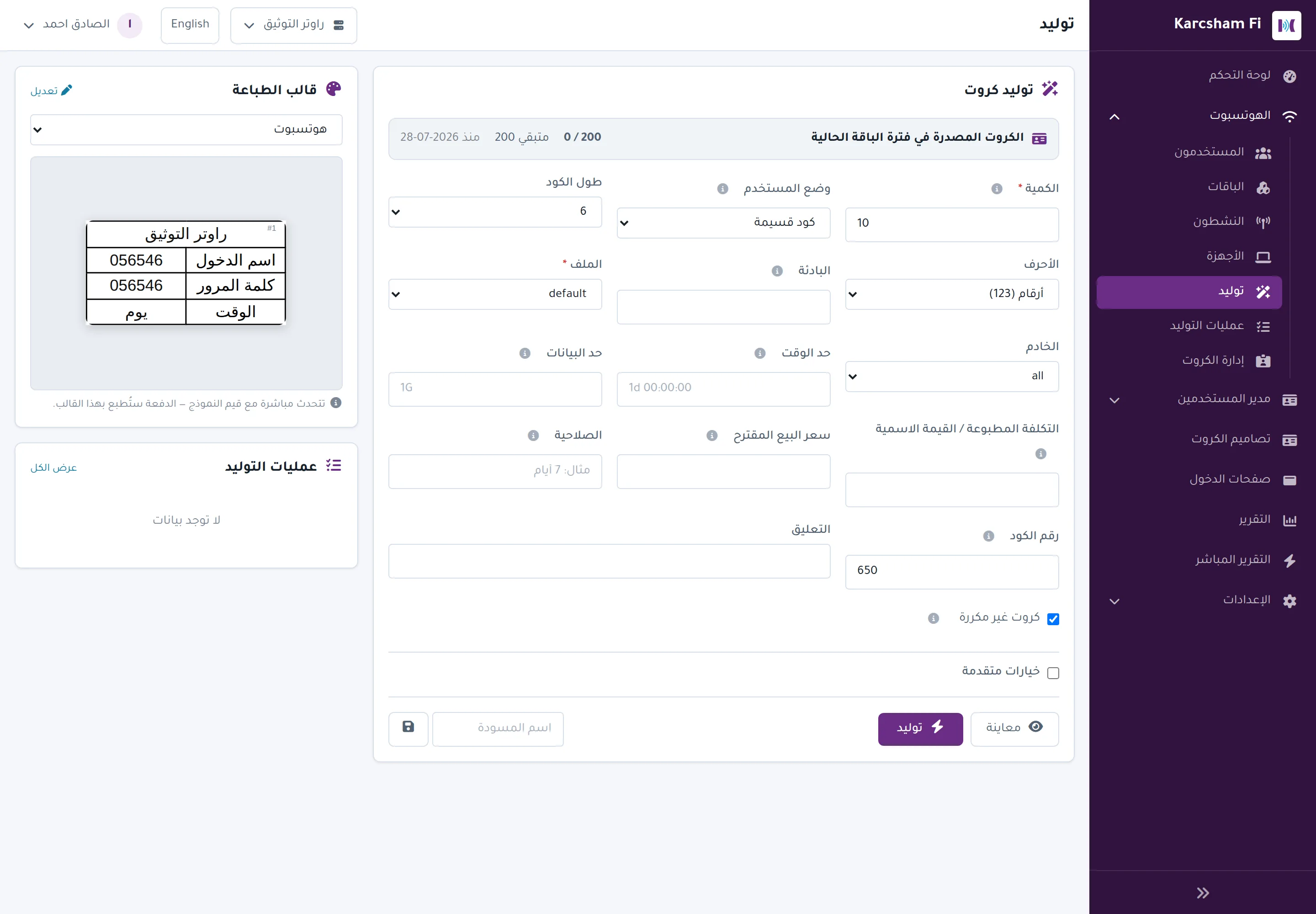
- When the test succeeds, select the router and start managing packages, vouchers, and reports within the plan limits.

What can you do after the first setup?
Once the router works in KF, you can use the base grants: router management within the limit, voucher generation, bulk generation, and daily operation. Later, you can purchase add-ons as needed, such as:
- Custom hotspot login pages.
- Extra voucher generation quota.
- Additional Karcsham Fi router capacity.
- Additional KWSM routers or access capacity if you need more than one VPN router.
When should you contact support?
Create a service request if:
- The router runs RouterOS v6 and you are not sure whether it can be upgraded safely.
- The script fails or the public key does not appear.
- Server apply stays pending for an unusual time.
- The KWSM connection check fails even though the router has internet access.
- KWSM succeeds but Karcsham Fi cannot test the router connection.
Include the RouterOS version, router name, latest error message, and whether the script was run once or more than once. Do not put passwords in the public request description; share access details only inside request messages when the team asks for them.
Guide parts
- Buying and activation
- Preparing your MikroTik router in KWSM
- Running the plan in Karcsham Fi (you are here)