

Start Plan (2 of 3): preparing your MikroTik router in KWSM
Published: 2026-07-29 Last updated: 2026-08-03
Reserving the tunnel address, running the WireGuard script from System then Scripts, sending the PublicKey, and checking the connection until the handshake appears.
Prepare the MikroTik router in KWSM
After the plan is active:
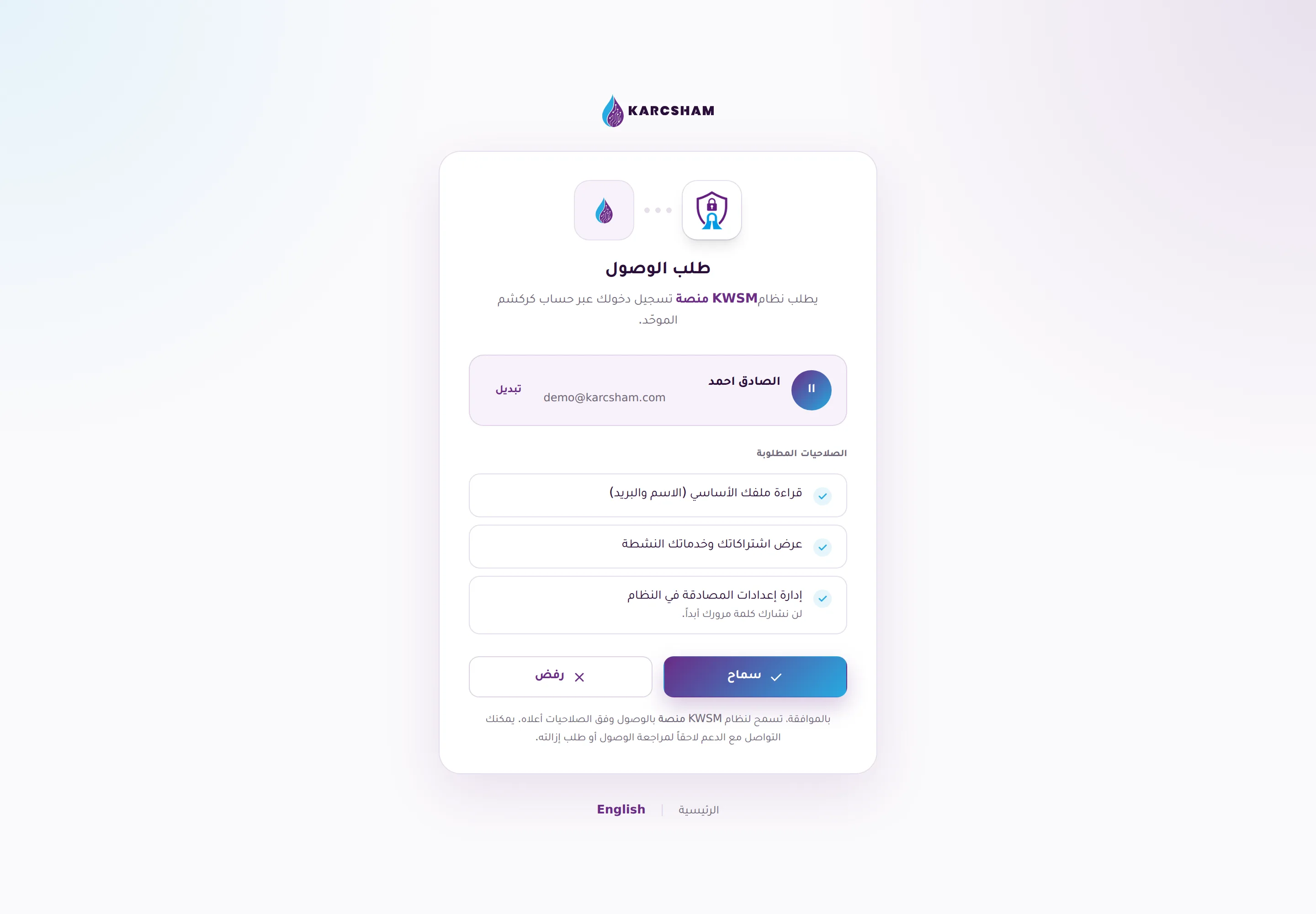
- Open connected applications from KARCSHAM Central, then enter KWSM.
- Add the router or open the VPN router setup page available to you.
- Generate the WireGuard script for MikroTik RouterOS v7 from KWSM.
- Open the router through WinBox or WebFig, then open System then Scripts.
- Press Add, paste the whole script into the Source field, then Apply, then Run. Run it once only.
- After the script runs, a public key will be available for the interface, or KWSM will instruct you to collect it from the router.
- Return to KWSM, paste the public key into the required field, and save.
- Wait for server apply to complete. Do not keep rerunning the script while apply is pending.
- When apply is complete, run the KWSM connection check.
- If the check succeeds, save the router's KWSM address. This is the address you will use as the IP or Host when adding the router in Karcsham Fi.
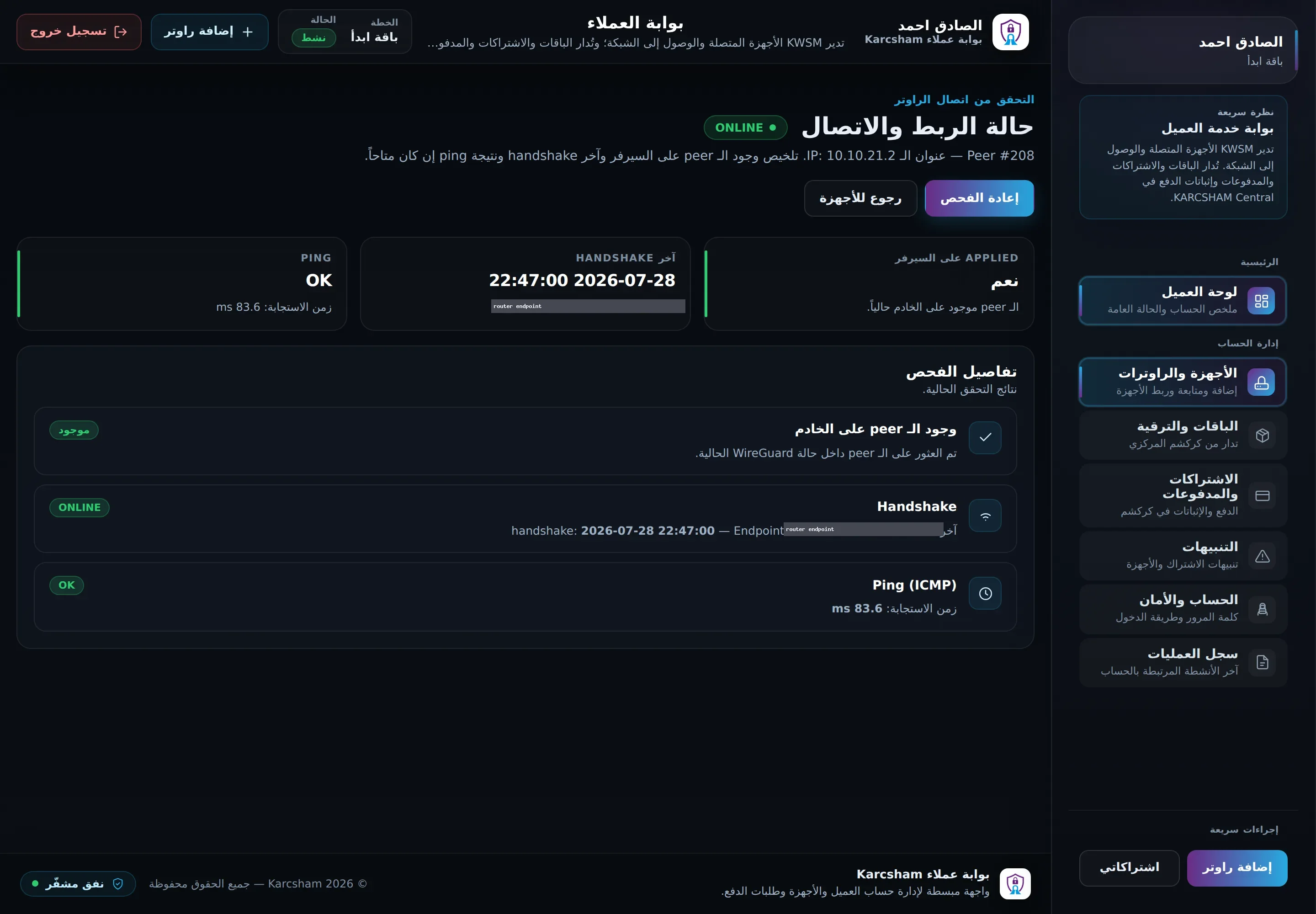
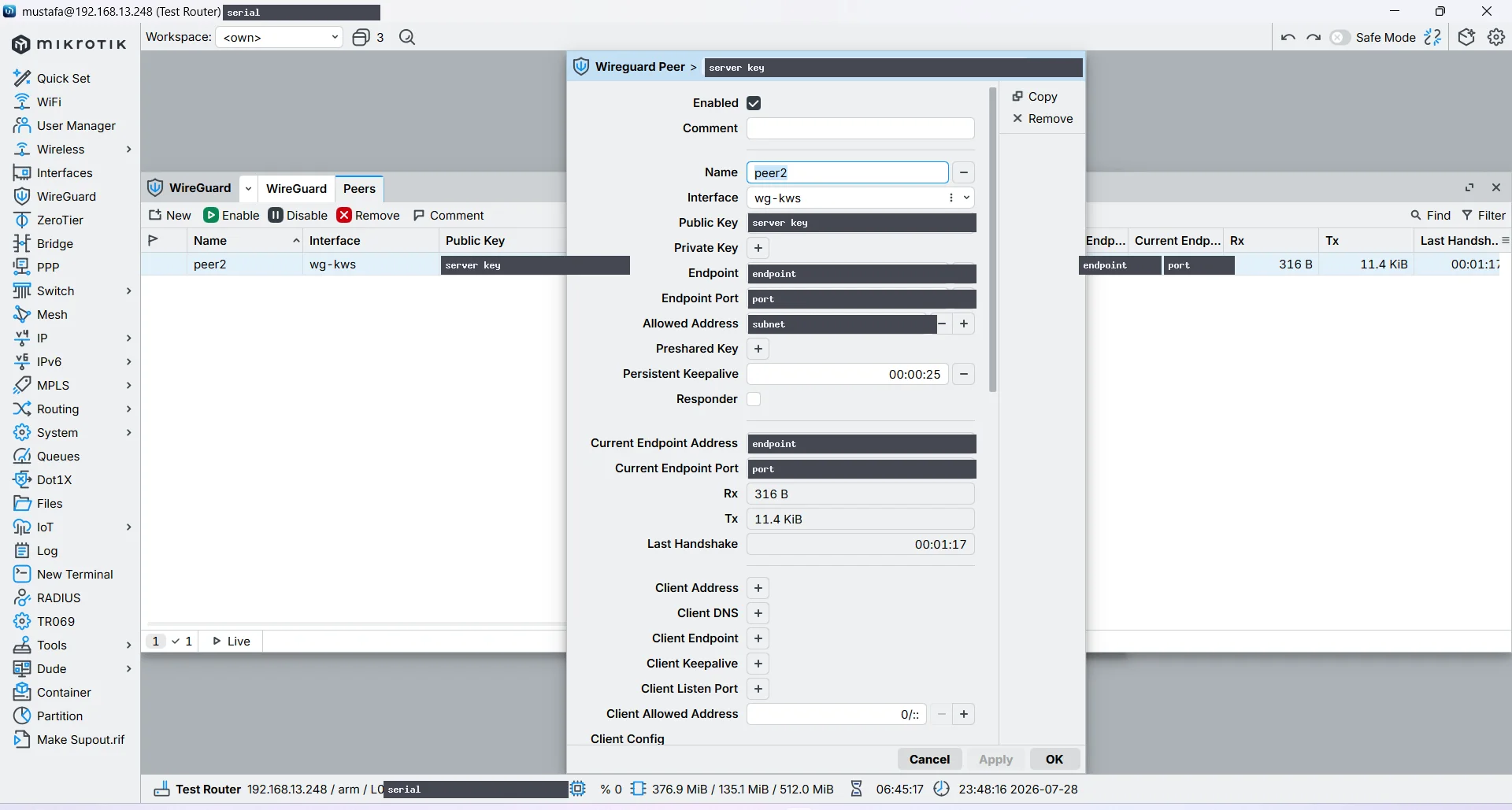
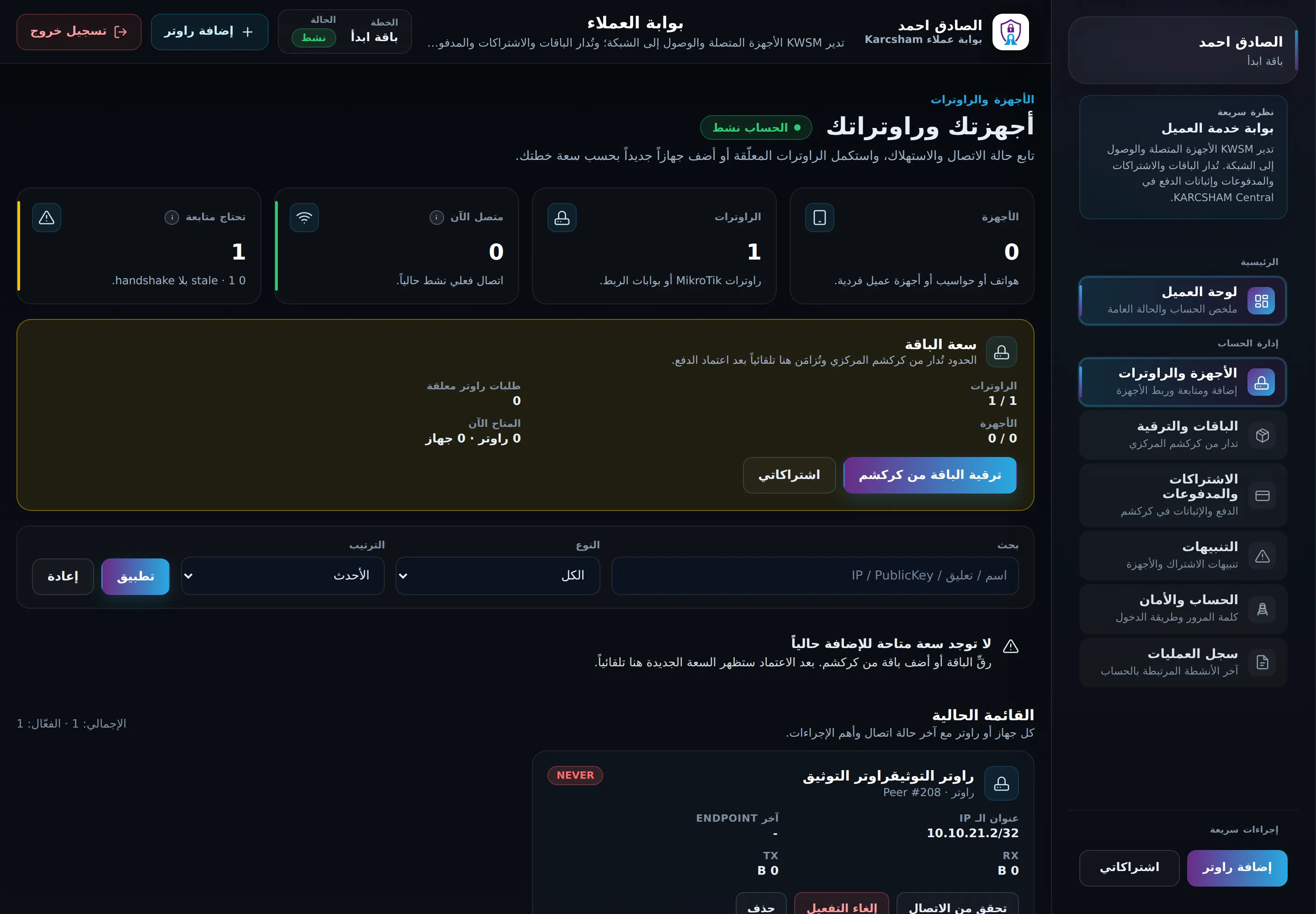
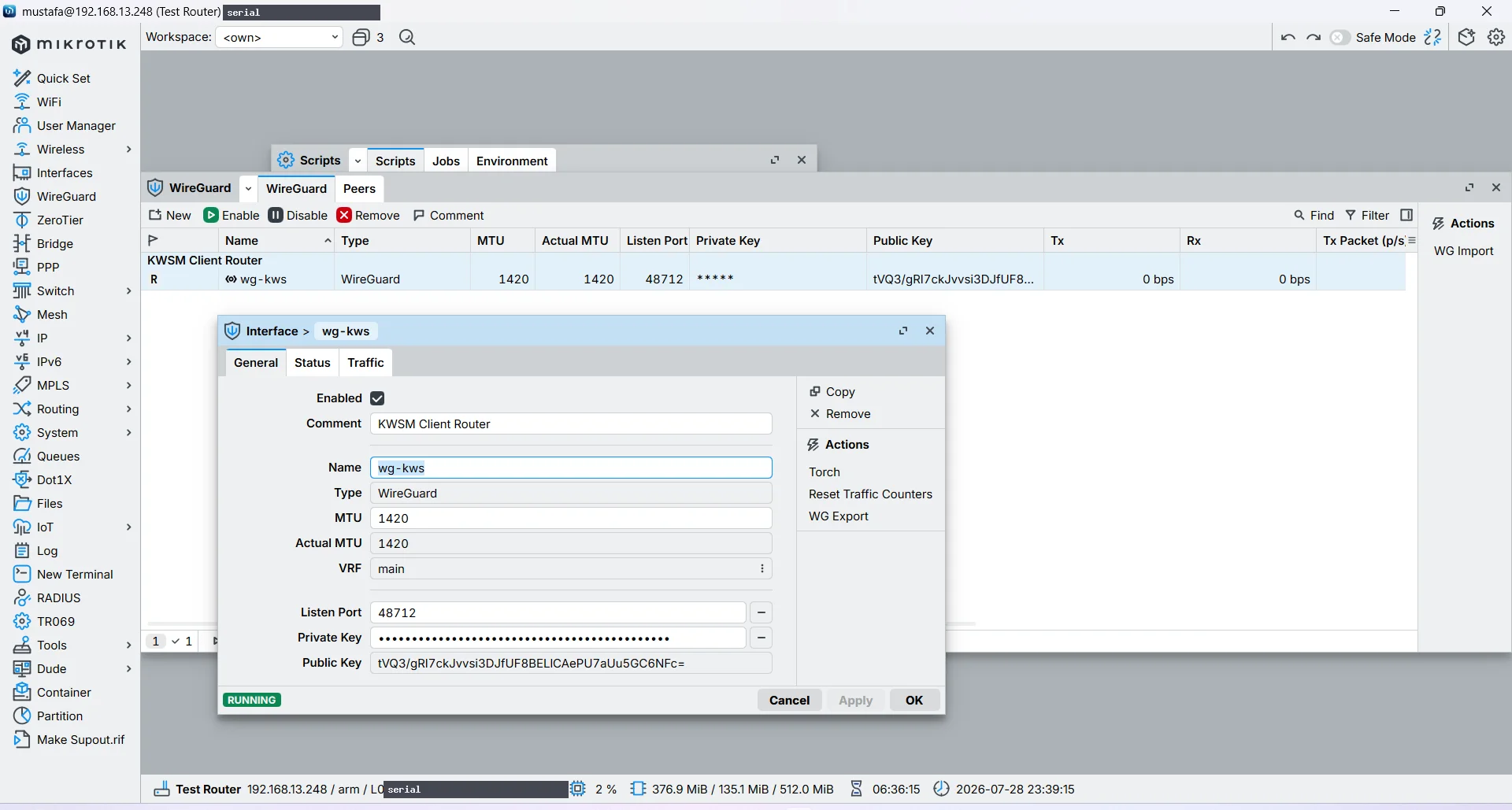
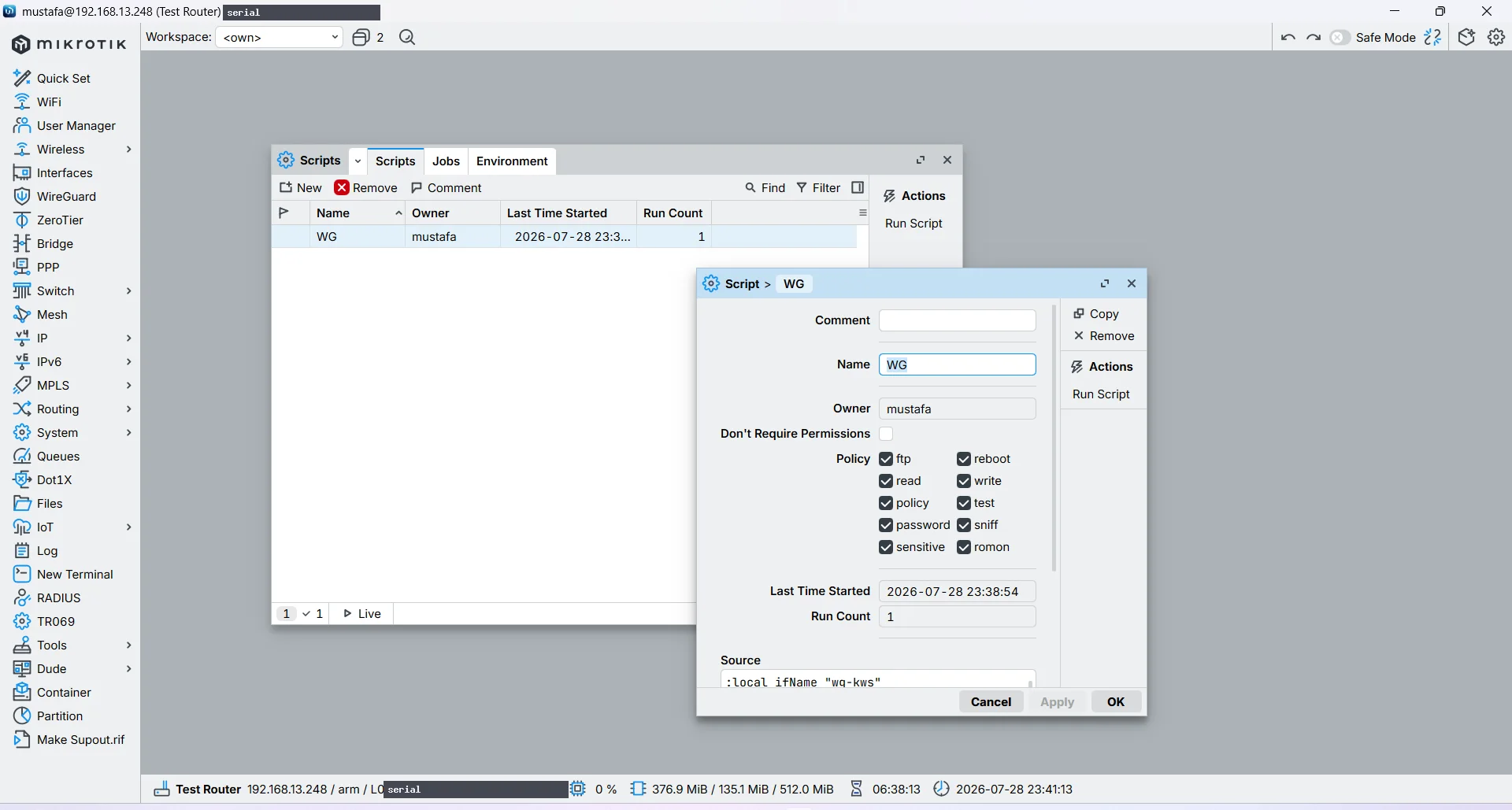
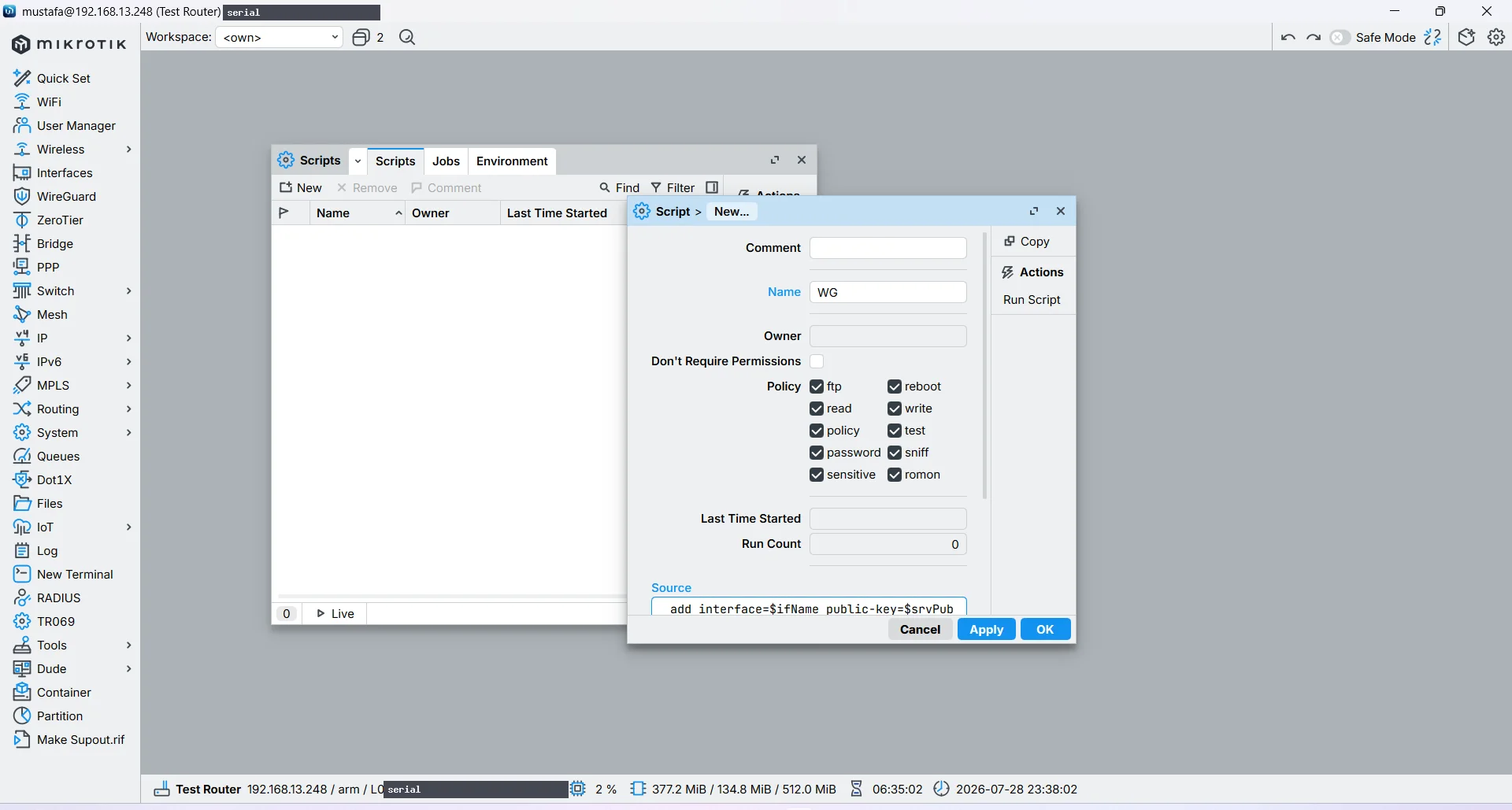
Do not paste the script into Terminal line by line. The script moves between RouterOS menus as it runs, and changing menu inside Terminal ends the scope of :local variables, so the remaining lines execute with empty values and fail with errors such as invalid value for argument address or no such item, and no PublicKey is printed. Running it from System then Scripts executes it in a single scope, so the variables survive.
If you already tried pasting into Terminal and it failed, check /interface wireguard print, /ip address print, and /interface wireguard peers print before retrying. Remove any half-created interface, address, or peer left by the failed attempt, then run the script from Scripts.
Use only the script generated for your own account. Do not share scripts, keys, or configuration files, and do not reuse a script from another account.
Before and after this step
If your subscription is not active yet, go back to buying and activation.
Once the connection check succeeds, continue to running the plan in Karcsham Fi.