

Service Guide
In category: Karcsham Fi
Generating and printing Hotspot cards
Published: 2026-06-13 Last updated: 2026-07-28
How to create card batches, choose package and design, and follow jobs to printing.
Hotspot Generate is the daily page for creating new card batches on the selected router.
Before generating cards
Confirm that:
- The correct router is selected.
- The package exists in Packages.
- Router connection is working.
- Your Central card limit is not reached.
- No generation job is already running for the same router.
Generation steps
- Open Hotspot then Generate.
- Enter Quantity.
- Choose User Mode:
- Voucher Code: username equals password.
- Username & Password: separate username and password.
- Choose Code Length and Characters.
- Add Prefix if needed.
- Select Profile and Server.
- Set Time Limit or Data Limit when needed.
- Enter Price for sales reporting.
- Enter Selling Price if you only want it printed for resellers.
- Enter Validity as text printed on the card.
- Review Code Number and Comment because they identify the batch later.
- Choose Print Design.
- Press Preview.
- Press Generate.
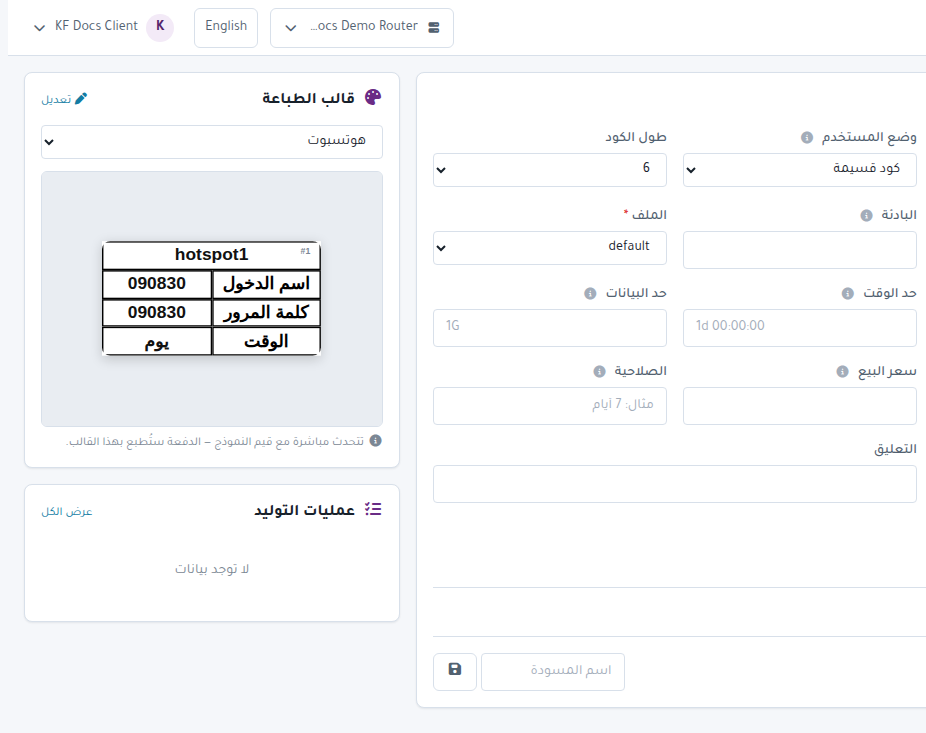
Advanced options
Advanced Options supports:
- Suffix.
- Random or Sequential pattern.
- Start Number and End Number for sequential batches.
- Password mode, length, and character set.
Follow the job
Generation runs in the background. Follow it from:
- The Generation Jobs panel on the same page.
- Hotspot then Generation Jobs.
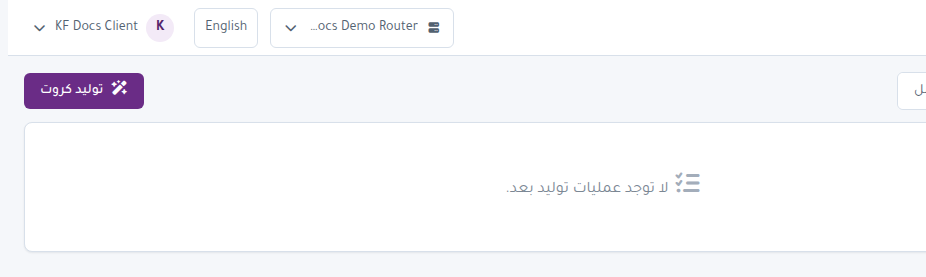
Do not start another job for the same router until the current one finishes.
Printing
After generation completes:
- Open Card Management or Cards Archive.
- Select the batch or cards.
- Press Print.
- Review the preview.
- Print from the browser or download PDF where available.