Recover or change your password
Published: 2026-07-26 Last updated: 2026-07-28
What to do if you forgot your password, and when to use password change from settings.
If you forgot your password, use the Forgot password page. Enter the registered email, and the site will show a generic privacy-safe message.
Why is the message generic?
For account safety, the site does not reveal whether the email exists. You will see a message meaning: if an account exists for that email, a recovery link has been sent. This prevents people from testing emails to discover registered accounts.
Recovery steps
- Open the forgot password page.
- Enter the email registered on your account.
- Check your inbox and spam or junk folder.
- Open the recovery link before it expires; the default link expiry is 60 minutes.
- Enter and confirm a new password.
- After saving, sign in with the new password.
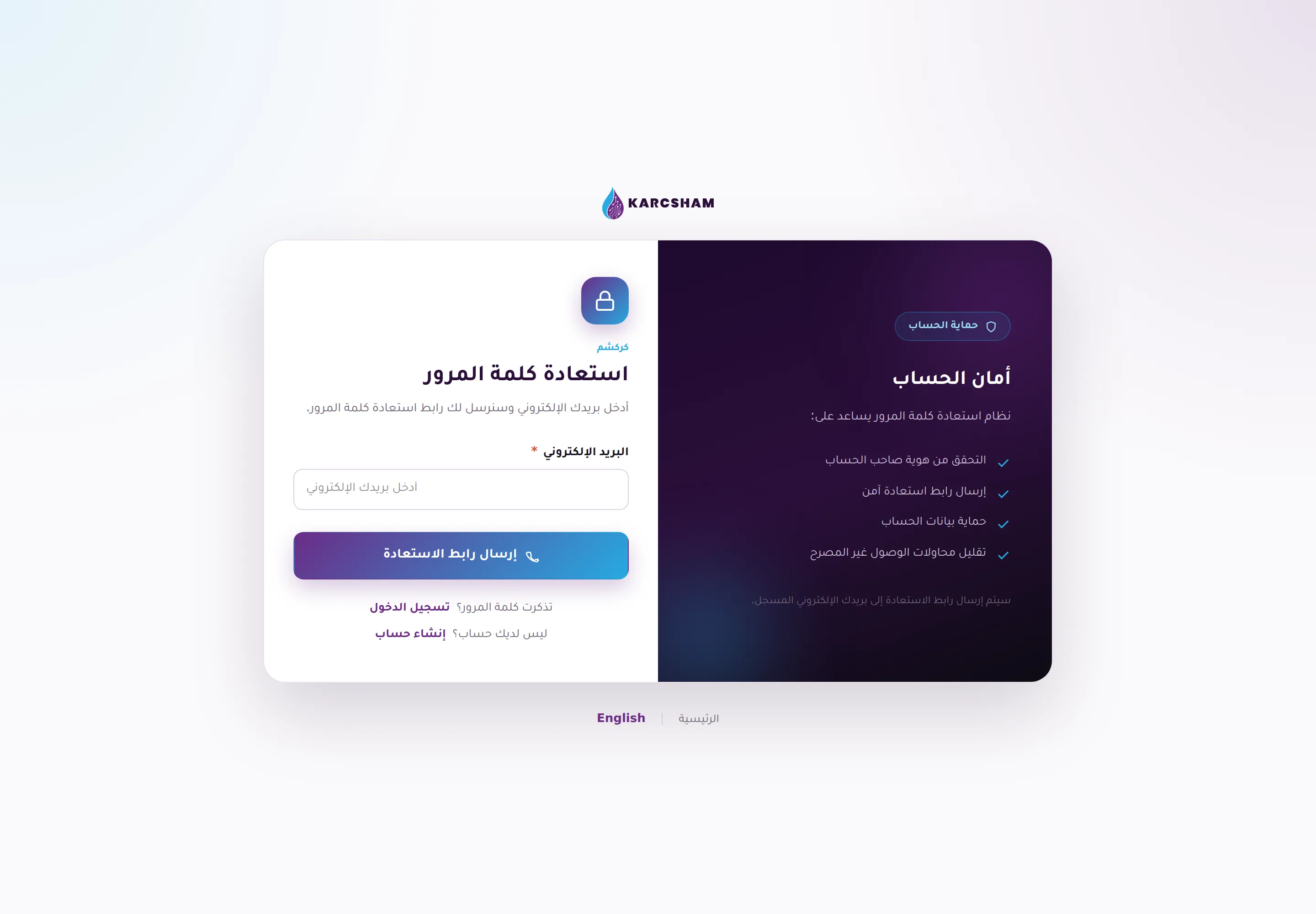
The new password must be at least 8 characters and include a letter and a number.
Changing password while signed in
If you know your current password and want to change it:
- Open settings.
- Use the change password section.
- Enter your current password, then the new password and confirmation.
- Save the change.
The KARCSHAM team will never ask for your password. If someone asks for it outside the site, do not share it.