Sign-in and common access blocks
Published: 2026-07-26 Last updated: 2026-07-28
How to sign in after verification, and what unverified email, WhatsApp, and inactive-account messages mean.
After confirming email, use the Sign in page with your email and password. If everything is valid, Central opens the dashboard.
What do you need to sign in?
- Confirmed email.
- Correct password.
- Active account.
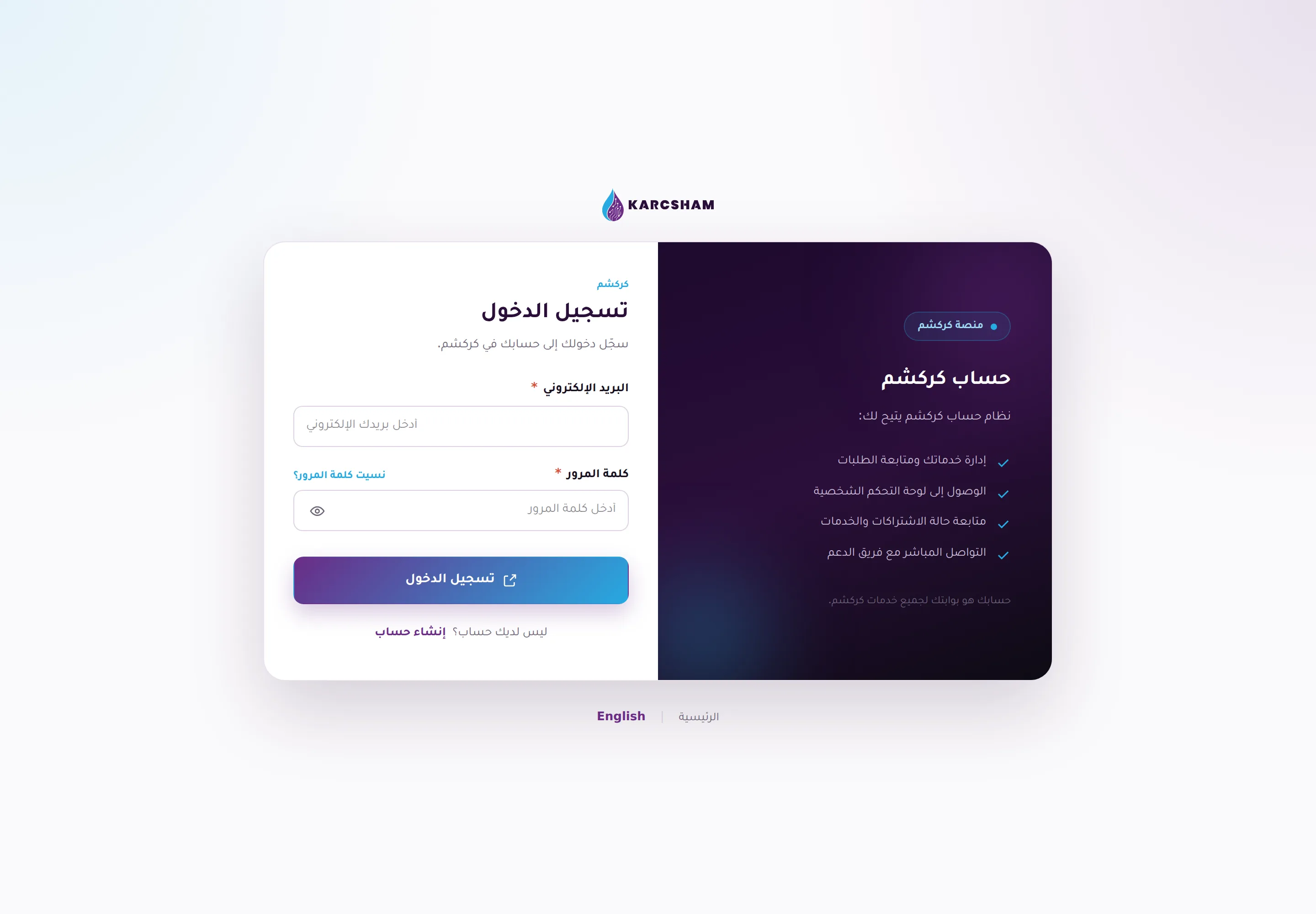
If the email is not confirmed, the system will not keep you signed in and will return you to sign-in with a message asking you to confirm email. If the account is inactive, you cannot continue until the team reviews it.
I can sign in but services do not open
This usually means email is confirmed but WhatsApp verification is not complete. In that state, you can open the dashboard, settings, and profile, but checkout, requests, and connected systems redirect you to settings to verify WhatsApp.
Launching connected systems
Karcsham Fi and KWSM buttons work from Central when these conditions are complete:
- The account is active.
- Email is confirmed.
- WhatsApp is verified.
- You have an active subscription or access grant for that system.
- The subsystem is accepting sign-in.
On first launch for some systems, you may see a consent page asking to share basic sign-in data with the subsystem. Allow is required to continue; Deny stops that launch only and does not delete your Central account.
Common messages
- Email not verified: open the verification link from your email.
- WhatsApp required: open settings and send the verification message.
- Wrong password: use password recovery.
- Inactive account: contact support, or use the contact page if you cannot sign in.