
Verify your WhatsApp number to use site services
Published: 2026-07-26 Last updated: 2026-07-28
How to send the verification message from the same number, and which services stay locked before verification.
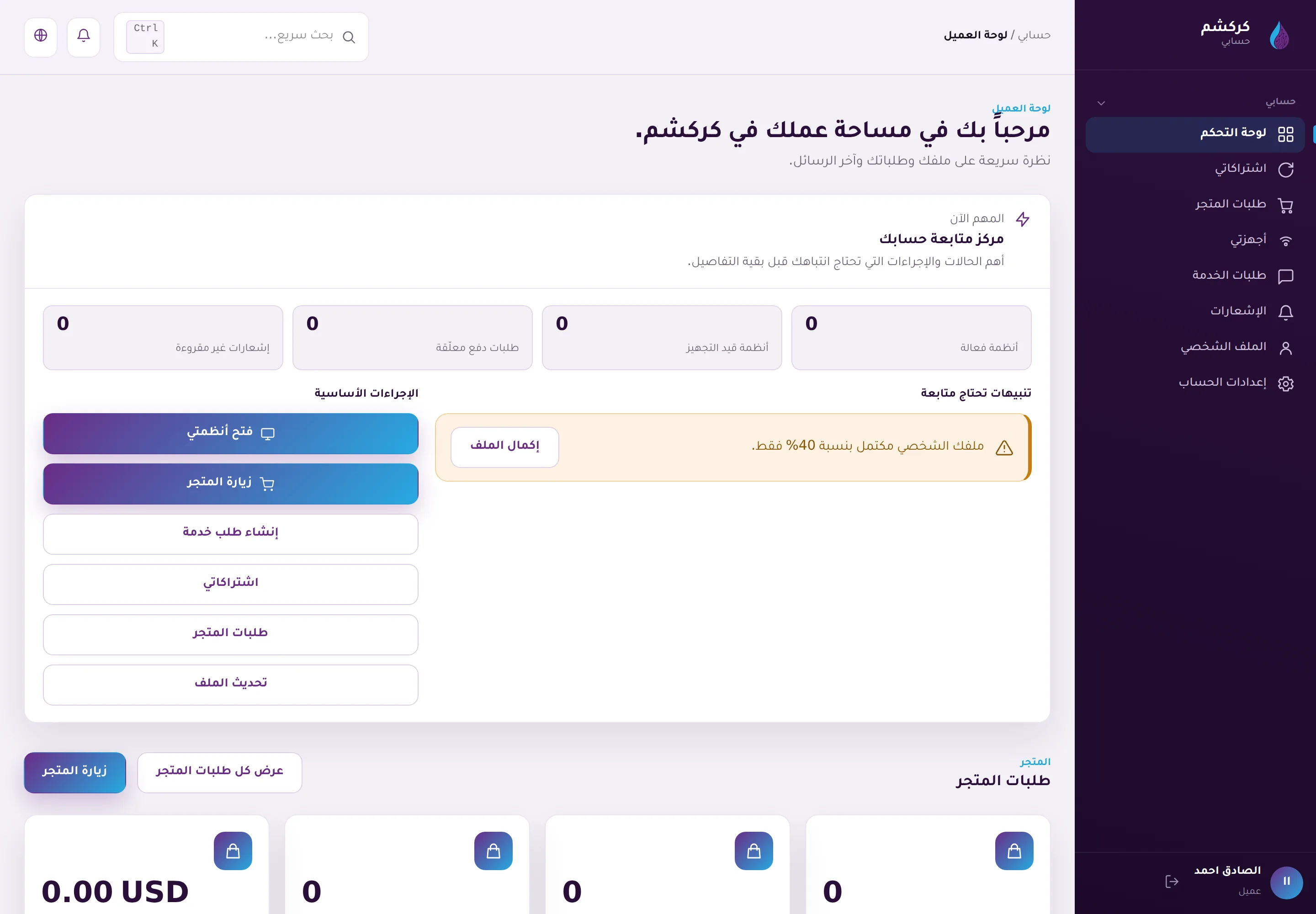
WhatsApp verification proves that the contact number belongs to you. Central uses this verification before opening services that create requests, process payments, or launch connected systems.
Where to verify
After confirming email and signing in:
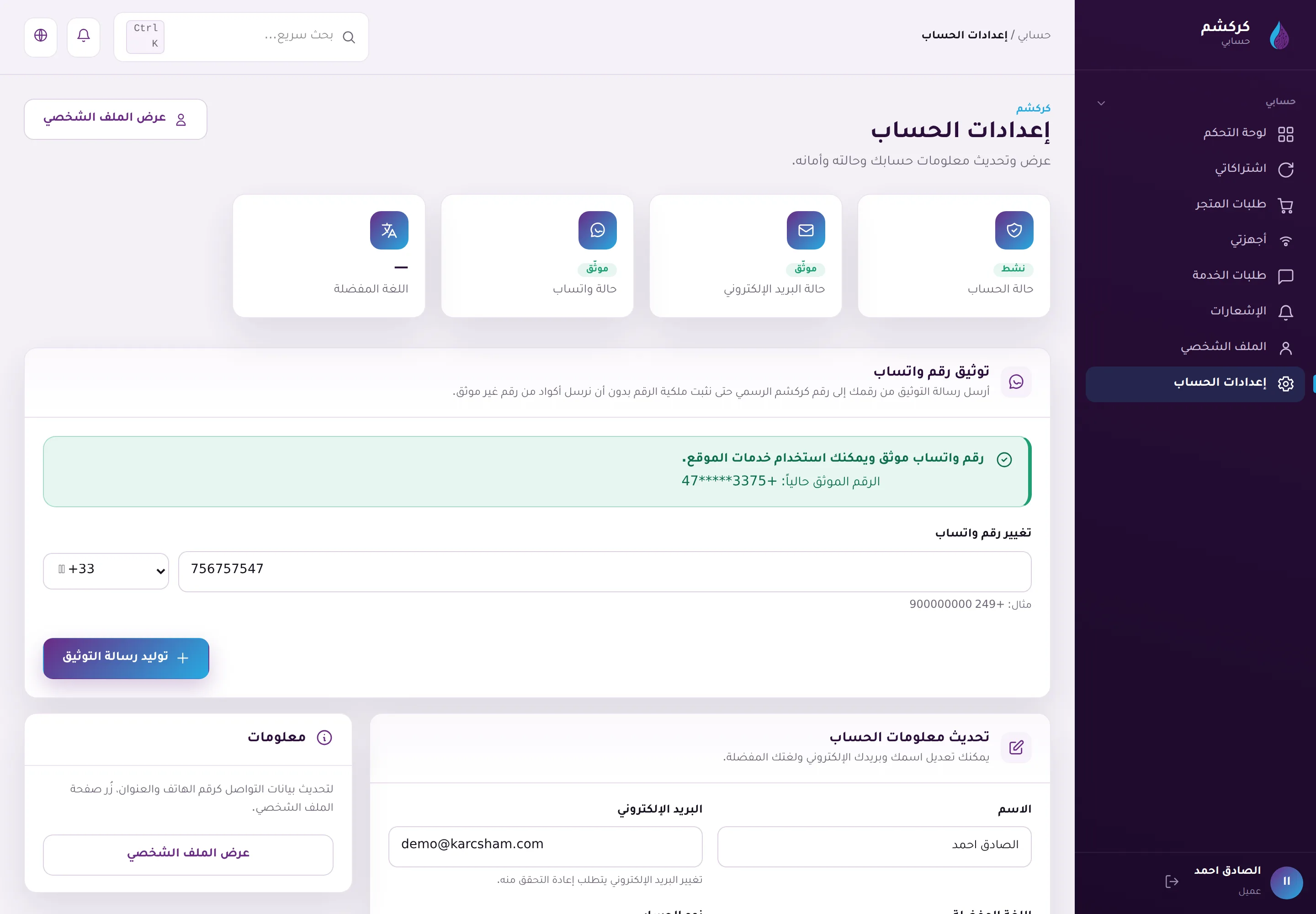
- Open Settings.
- Open the WhatsApp number verification section.
- If a prepared message is shown, copy it exactly or press Open WhatsApp.
- Send the message from the same number you want to verify to KARCSHAM's official WhatsApp number shown in the link.
- Wait for the system reply or refresh the page after a short time.
The verification message looks like: KARCSHAM VERIFY XXXX-XXXX. Send it exactly as shown, without edits or extra text.
Expiry and attempts
- The WhatsApp challenge is valid by default for 24 hours.
- If it expires, generate a new message from settings.
- If the message is sent from a different number, verification will not complete.
- After several wrong attempts, the challenge may be consumed and you need to start a new one.
- The same WhatsApp number cannot be linked to two different accounts.
What stays locked before WhatsApp verification?
You can still access the dashboard, settings, and profile, but practical customer services remain locked, such as:
- Checkout and payment completion.
- Viewing orders and uploading payment proof.
- Service requests and support messages inside requests.
- Devices and subscriptions.
- Launching Karcsham Fi or KWSM from Central.
If you try to open a locked service before verification, Central redirects you to settings with a message asking you to complete WhatsApp verification.
Changing the WhatsApp number later
If you already have a verified number and want to change it, start a new challenge from settings. The old number is not replaced until the new number is successfully verified.